
SnipeOffice on Citrix WinFrame
Citrix WinFrame is the hardest operating system SnipeOffice has been onboarded to. Not the oldest, not the rarest, and not the most obscure, the hardest(to date). Every step of the process fought back. We reinstalled the machine five times testing the various failure modes documented below, and even with a valid serial and an activation backup, getting WinFrame licensed now is its own small ordeal before you even reach the browser question. There is no desktop build of SnipeOffice for WinFrame and there never will be, because there is nothing in the WinFrame runtime that could host a modern office suite. The entire story here is Snipe Cloud Office in a browser, and getting a browser onto this operating system that is both modern enough to render Cloud and stable enough to survive an install is where the fight happens.
This article walks through what we tested on WinFrame, what killed the machine, what only worked after a specific prerequisite chain, and what finally produced Snipe Cloud Office rendering cleanly in a browser on the desktop of a Citrix multiuser NT box from 1996. The short version: Opera 9 and Netscape 9 run Snipe Cloud Office on the legacy channel, both of them require preparation to install at all, one of the install failure modes on the way is a full bluescreen that leaves the machine unbootable, and no version of Firefox we tried ran at all.
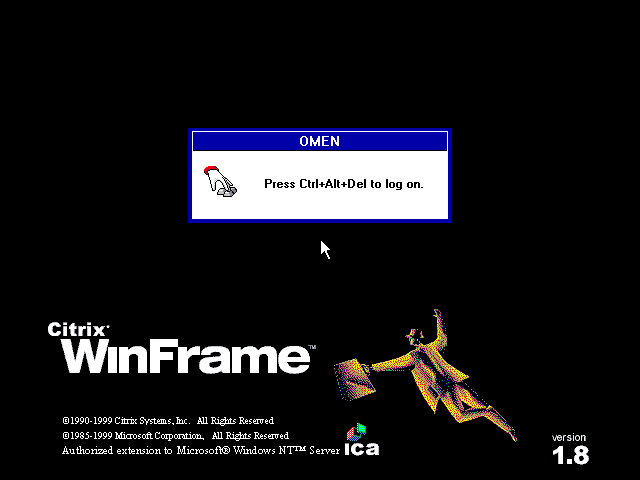
Citrix WinFrame v1.8 boot logon prompt on the OMEN test machine. WinFrame is Citrix’s authorised multiuser extension to Windows NT Server, built on the NT 3.51 codebase and licensed from Microsoft. The ICA logo lower-centre is the protocol that made Citrix Citrix.
What WinFrame actually is
WinFrame is a Citrix product from 1996 that layered multiuser session support on top of Windows NT 3.51 Server, years before Microsoft added the same capability under the Terminal Services banner in NT 4. It runs the NT 3.51 kernel, the Program Manager shell, and the classic Windows 3.x-style UI, with Citrix’s WinCenter and MetaFrame components sitting on top. For our purposes it is effectively NT 3.51 with a login manager and a multiuser display server bolted on. Every browser installed on it identifies as running on Windows NT 3.51.
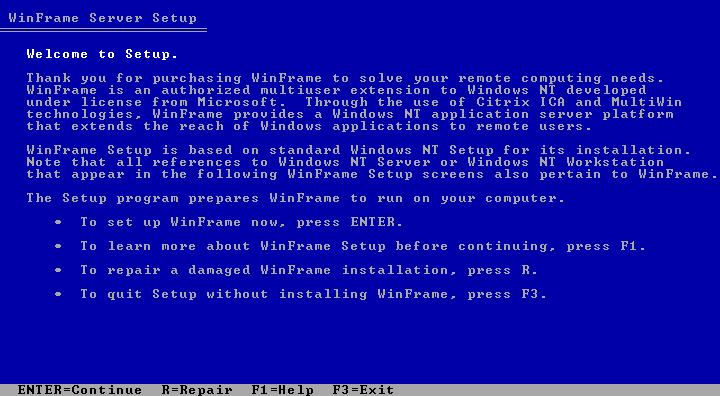
The WinFrame Server Setup text-mode installer. “WinFrame is an authorized multiuser extension to Windows NT developed under license from Microsoft” is the on-screen confirmation of what this operating system actually is: NT Server 3.51 with Citrix’s ICA multiuser server bolted on top. (Winframe 1.8)
Activation Today is its own ordeal
Before any browser question comes up, WinFrame has to be licensed. The Citrix Licensing tool asks for a Base License serial number, and even with a valid serial and an activation backup on hand, getting the activation to actually take on an install of WinFrame over 30 yesrs later is a genuine ordeal. Citrix’s original activation infrastructure is long gone, the offline paths that used to work require specific dialog sequences that are easy to get wrong, and the machine will happily boot and let you use Program Manager in the unactivated state without making it obvious that anything is unlicensed until you try to do something session-related. Budget an evening for this step before you budget anything for browsers.
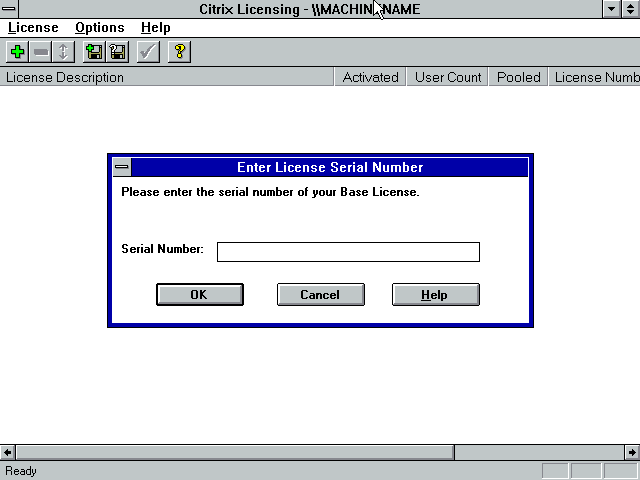
The Citrix Licensing application asking for a Base License serial number. Getting a WinFrame Base License activated in 2026, even with a valid serial and a backup on hand, is a multi-step ordeal in its own right. This is step zero before any browser work begins. (Winframe 1.6 the easiest to activate if you still have backup floppies)

The WinCenter logon dialog for WINFRAME_VM once activation is complete. Administrator user, ready to start the browser work. (This is the 1.6 Logon Screen)
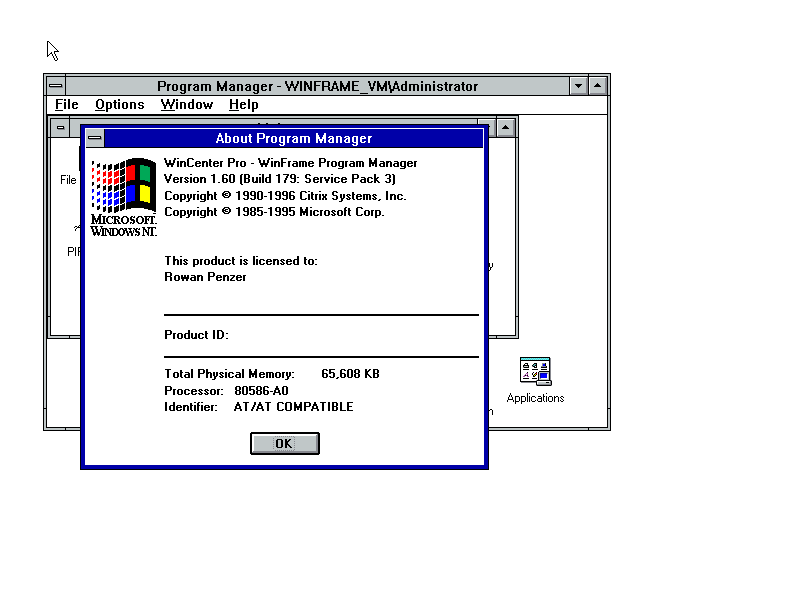
Program Manager About dialog reporting WinCenter Pro / WinFrame Program Manager Version 1.60 (Build 179: Service Pack 3), 65,608 KB of physical memory, 80586-A0 processor. This is the runtime everything below has to install on top of.
The browser stack on CD
Because a WinFrame machine’s reach onto the modern web is minimal, we prepared a browser-stack CD in advance and mounted it as drive D:. The disc carries every Internet Explorer version from 2.0 through 9, the general and NT-specific IE installers, the Netscape lineage from Personal Edition through Navigator 9, the Opera lineage from 3.62 through 11, prerequisite packs, and the Winsock replacement we describe later. Having every installer offline on one disc is not optional on this platform. You will need to run installers repeatedly as the reinstalls compound, and going back to the web every time is not a viable workflow when the machine itself has no browser that can reach a modern download page.
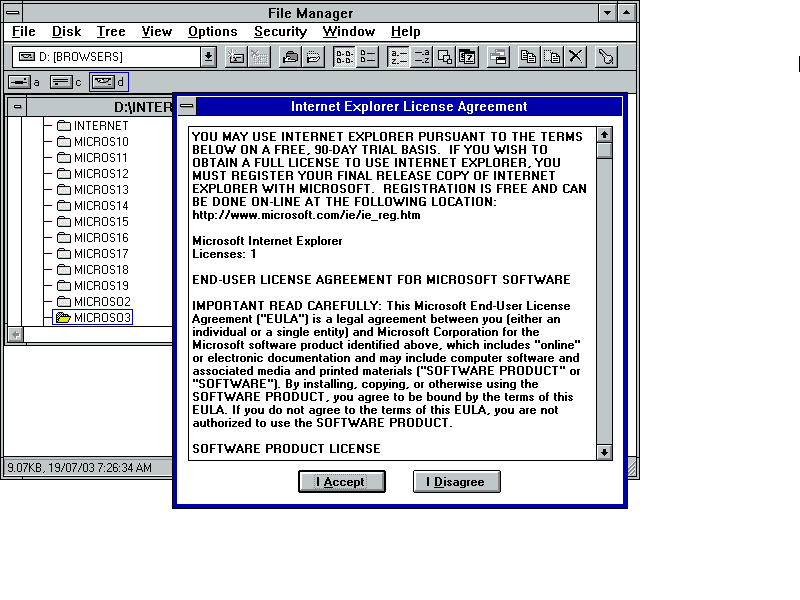
The mounted browser-stack CD (D:) as seen in WinFrame’s File Manager. The MICROSO* folders each hold a different Internet Explorer version; NETSCAPE, OPERA, and FIREFOX folders hold the respective lineages; prerequisite packs sit alongside.
Internet Explorer 2 through 4: the Dial-Up Manager trap
Internet Explorer 2.0 and 3.03 install cleanly on WinFrame using the general IE installer. Both complete without incident and land as functional browsers. Both are also far too old to render Snipe Cloud Office in any usable way, they are documented here for completeness and because they are the fastest confirmation that TCP/IP is working on the machine.
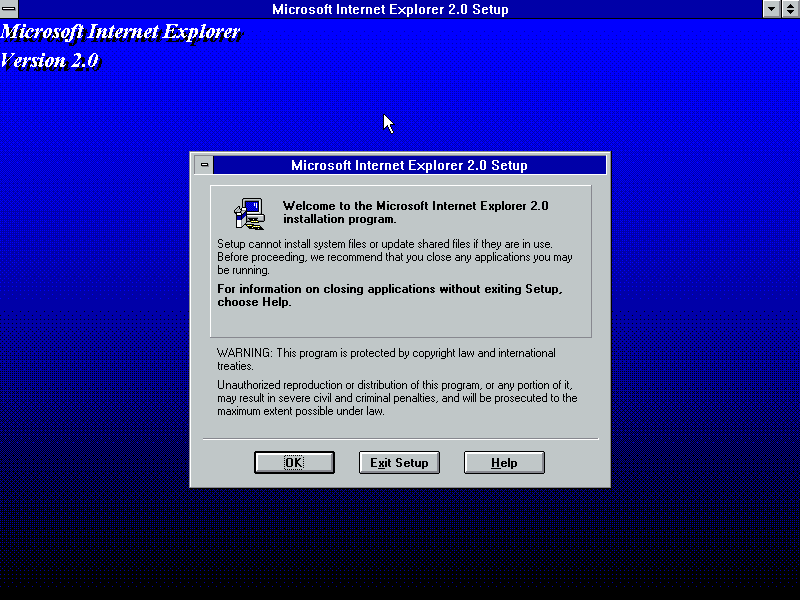
Internet Explorer 2.0 Setup welcome screen. Installs cleanly on WinFrame via the general installer. Useful only to confirm TCP/IP is working.
Internet Explorer is where the first trap appears. The Custom options screen lists four components: IE 3.03 itself, Internet Mail, TCP/IP Stack and Dialer, and Virtual Machine for Java. The TCP/IP Stack and Dialer option, the Dial-Up Networking / Dial-Up Manager component, will bluescreen the machine on next boot if selected. It replaces networking components that WinFrame’s NT 3.51 stack cannot accept, and the result is an IRQL_NOT_LESS_OR_EQUAL stop against ntoskrnl.exe the next time NT tries to bring up the network stack. The machine does not boot again after that. We reproduced this failure repeatedly. Deselect that option. Leave it deselected. The same trap exists in IE 3 and 4.
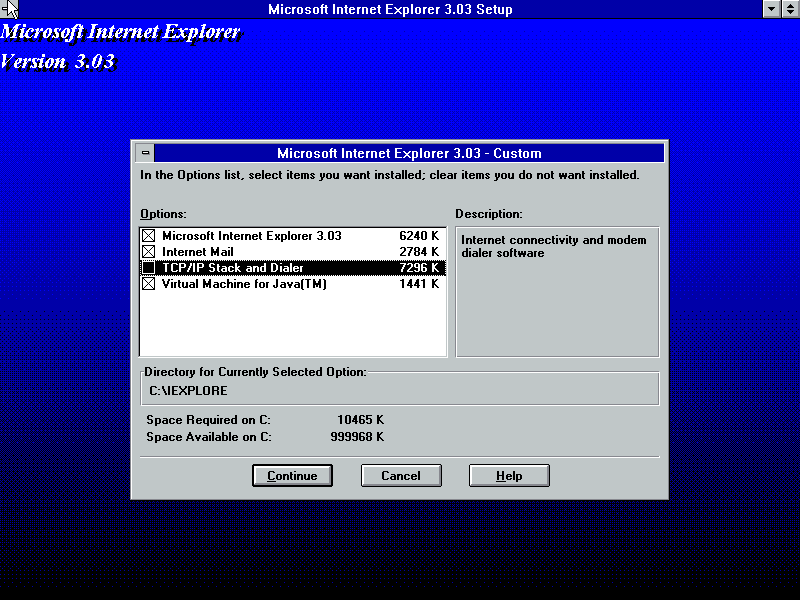
IE 3.03 Custom options screen. The highlighted “TCP/IP Stack and Dialer” line is the option that must be unchecked before continuing. Selecting it will bluescreen WinFrame on next boot and the machine will not recover.
WARNING Do NOT select “TCP/IP Stack and Dialer” (the Dial-Up Manager) in the IE 3 or IE 4 Custom install options on WinFrame. It will bluescreen the machine on next boot with IRQL_NOT_LESS_OR_EQUAL against ntoskrnl.exe and the machine will not boot again. We hit this repeatedly. Deselect it every time.
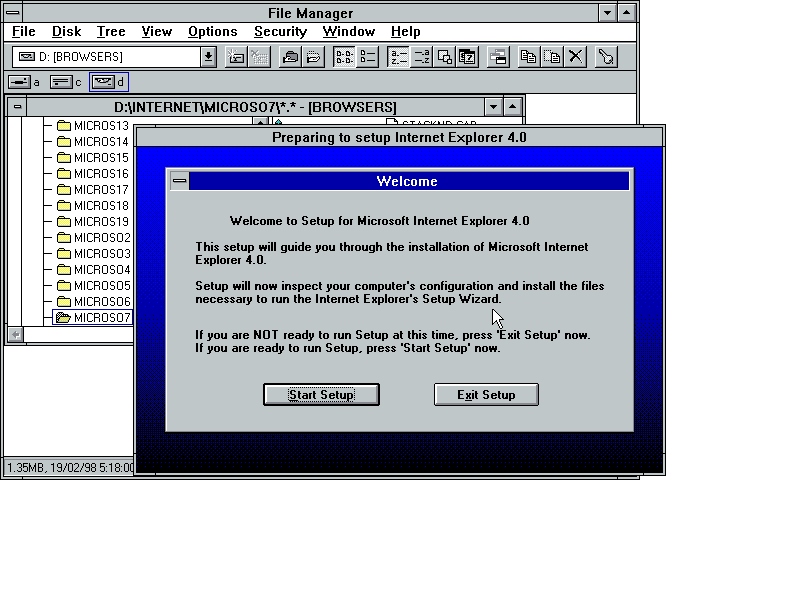
Internet Explorer 4.0 Active Setup welcome. IE 4 uses Active Setup rather than the classic installer used by IE 2 and 3. The same Dial-Up Manager warning applies here: any dial-up networking component offered during install must be declined.
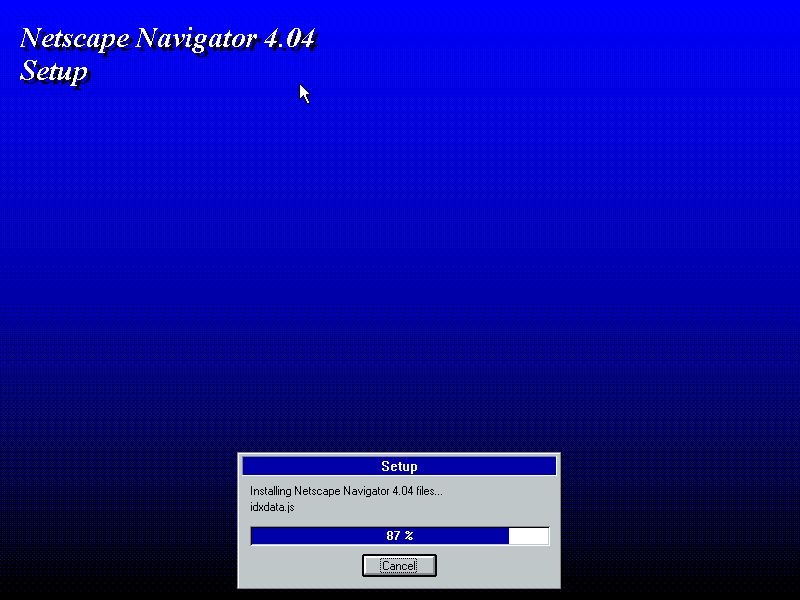
IE 4.0 core components installing “for Win 3.1/Win NT 3.51”. IE 4 installs on WinFrame via the general installer with dial-up components deselected. Past IE 4, the general installer is not usable and only the NT-specific builds will proceed.
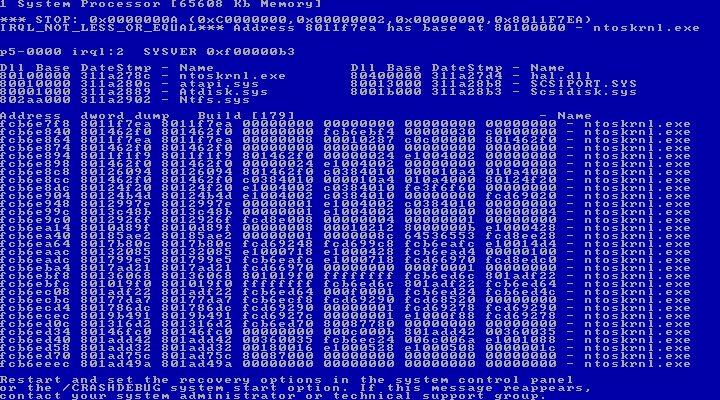
The reward for ignoring the Dial-Up Manager warning: STOP 0x0000000A IRQL_NOT_LESS_OR_EQUAL against ntoskrnl.exe on next boot. The loaded-driver dump shows atapi.sys, Ntfs.sys and Scsiport.sys because those are the last things NT tried to bring up before hitting the broken networking layer. WinFrame does not boot again after this. This screen ended two of the five reinstalls.
IE 5: NT-specific installer only
Internet Explorer past version 4 will not install on WinFrame via the general installer. Only the NT 3.51 specific IE 5 build proceeds. Once installed, IE 5 will load Snipe Cloud Office to the point of rendering the legacy Start Center shell, but with visible layout gaps and script errors in the status bar. It is enough to confirm the machine can reach cloud.snipeoffice.org and negotiate TLS, and no more. The 40-bit cipher strength on this era of IE is also below what the endpoint prefers. IE 5 on WinFrame is a diagnostic tool, not a working browser.
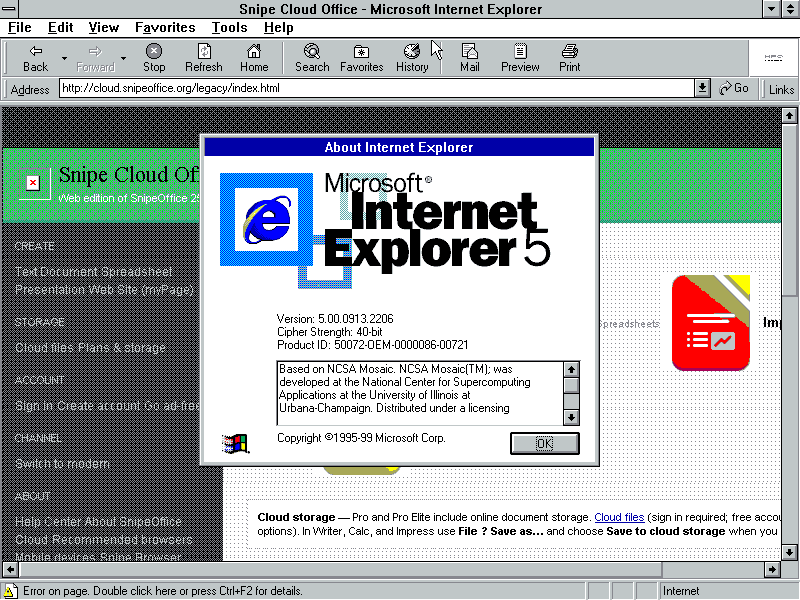
Internet Explorer 5 on WinFrame loading Snipe Cloud Office. Version 5.00.0913.2206, 40-bit cipher strength. The Start Center partially renders behind the About dialog; note “Error on page” in the status bar at the bottom. IE 5 confirms the connection works; it is not a browser to work in. (Make sure you install IE 3 then 4 ideally NT 3.51 specific releases FIRST; this prevents DLL gaps. In theory you can get up to 5.5, but let’s be clear, we likely already spent too much time on this oddity.)
Opera: the prerequisite chain
Opera is the recommended browser lineage for WinFrame, but only after a specific prerequisite chain is in place. Without preparation, Opera on WinFrame tops out at 3.62. Anything newer refuses to run or crashes on launch until three separate things are true on the machine (SnipeOffice Legacy can run on this although the experience is not ideal).
First, Internet Explorer must be updated to at least IE 4, because later Opera builds depend on system libraries that ship with IE and are missing on a stock NT 3.51 install. Second, the machine’s OLE Automation library needs to be recent enough: %systemroot%\system32\oleaut32.dll must be at version 2.40.4275 or later. On a stock WinFrame install it is not. The fix is the Microsoft Libraries Update version 2 (SPEU20.exe), which ships an updated oleaut32.dll along with the surrounding OLE support DLLs. It is available from the Internet Archive at web.archive.org (search for SPEU20.exe under floppy.haveaday.net Windows updates). Without this pack, Opera 9 refuses to launch. Third, Opera may complain that it needs Winsock 2. WinFrame ships Winsock 1.1. There is exactly one safe way to fix this.
WARNING Do NOT install Microsoft’s official Winsock update on WinFrame. It will render the machine unbootable and no recovery path exists short of reinstalling. Use DaniElectra’s winsock351 replacement from github.com/DaniElectra/winsock351 instead. It is the only known-safe route to Winsock 2 on NT 3.51 .
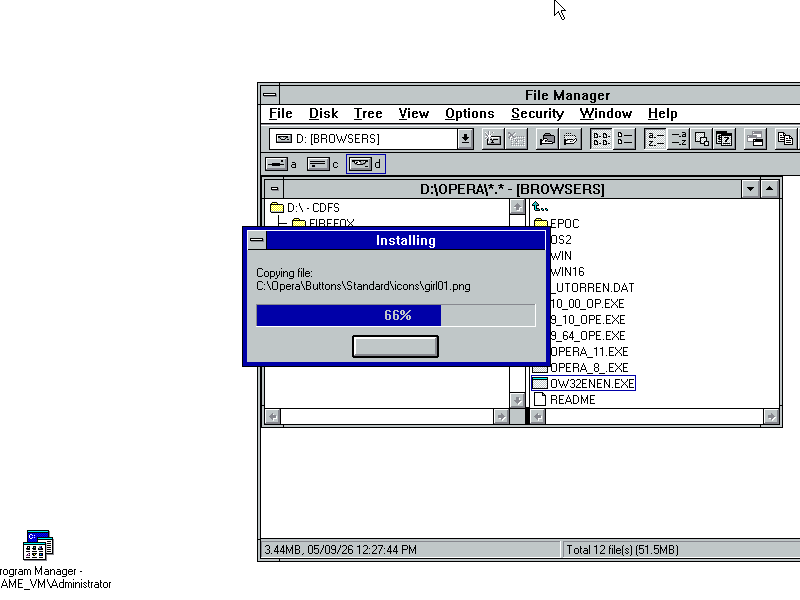
The Opera installer directory on the browser-stack CD. Every major Opera build from 3.62 through 11 is present: 10_00_OP.EXE, 9_10_OPE.EXE, 9_64_OPE.EXE, OPERA_11.EXE, OPERA_8_.EXE, OW32ENEN.EXE. Having all of them local because working out which one your machine will actually run is an iterative process.
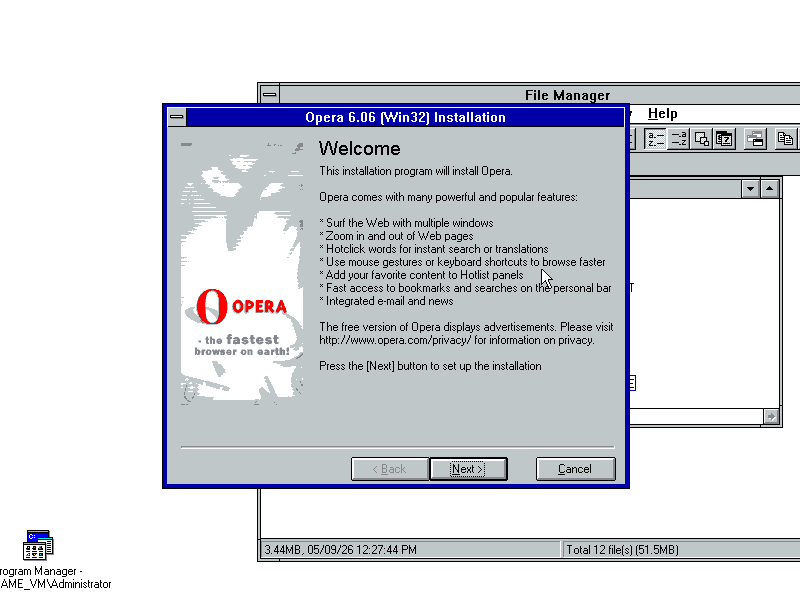
Opera 6.06 (Win32) installer welcome on WinFrame. Opera 6 is the earliest version that runs Snipe Cloud Office legacy stably on this operating system, provided the IE and oleaut32 prerequisites are in place.
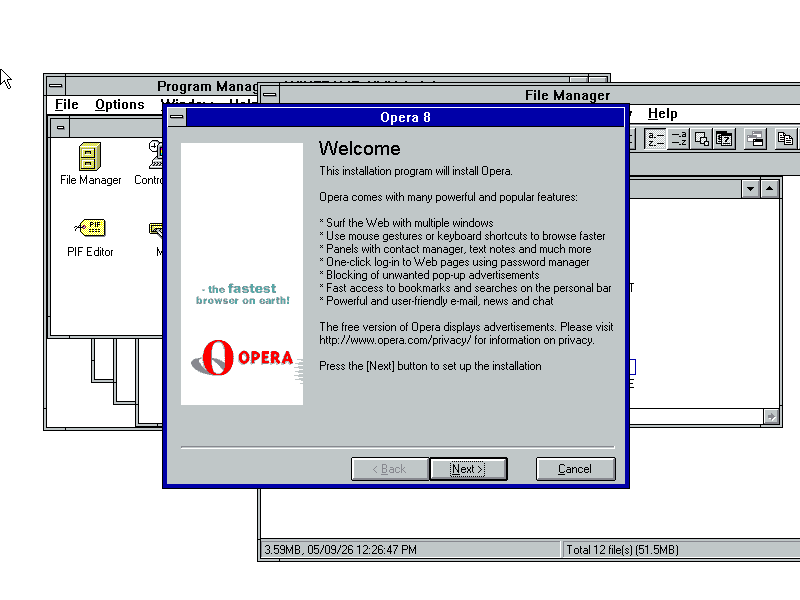
Opera 8 installer welcome. Opera 8 runs on WinFrame with the prerequisites satisfied and renders Snipe Cloud Office correctly.
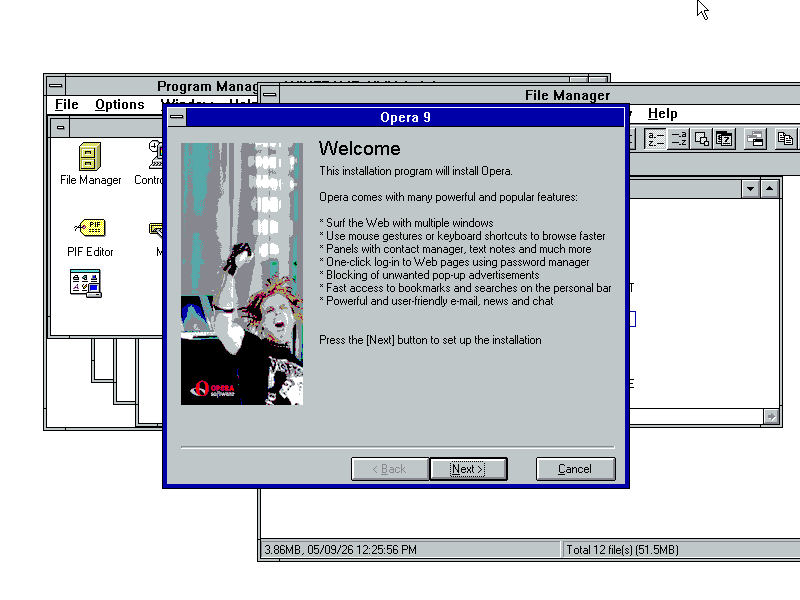
Opera 9 installer welcome on WinFrame. Opera 9 is the recommended version: it renders Snipe Cloud Office cleanly across Writer, Calc, Impress, and myPage, and it does not require Java for any of them.
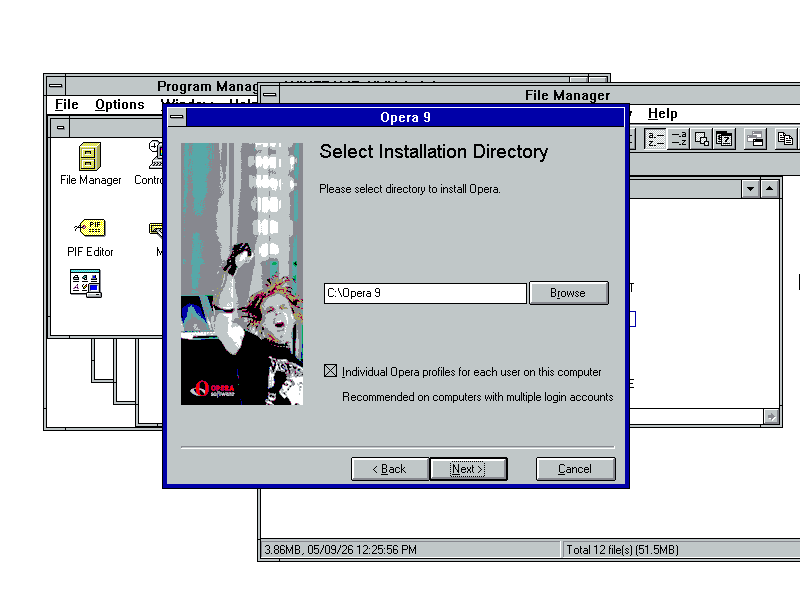
Opera 9 install directory selection (C:\Opera 9) with the “Individual Opera profiles for each user” option for multi-user WinFrame sessions.
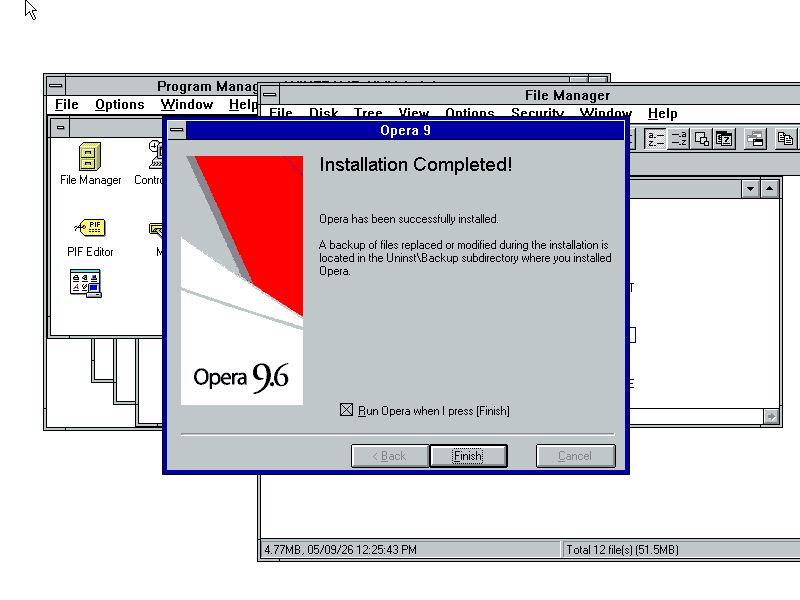
Opera 9.6 Installation Completed. This is the target state: a working modern-enough Opera on WinFrame, ready to point at cloud.snipeoffice.org.
Netscape: fine until 6, then the disk-space comedy
Netscape’s story on WinFrame is different. Netscape Personal Edition, Navigator 3, and Navigator 4 all install cleanly from the browser-stack CD without any of the prerequisite work Opera needs. Netscape 6 also installs cleanly. From Netscape 6 upwards the suite renders Snipe Cloud Office correctly on the legacy channel; from Netscape 9 the User-Agent is Gecko-based and picks the legacy channel automatically. This is the same behaviour we documented on Neptune and other NT-era Windows builds.
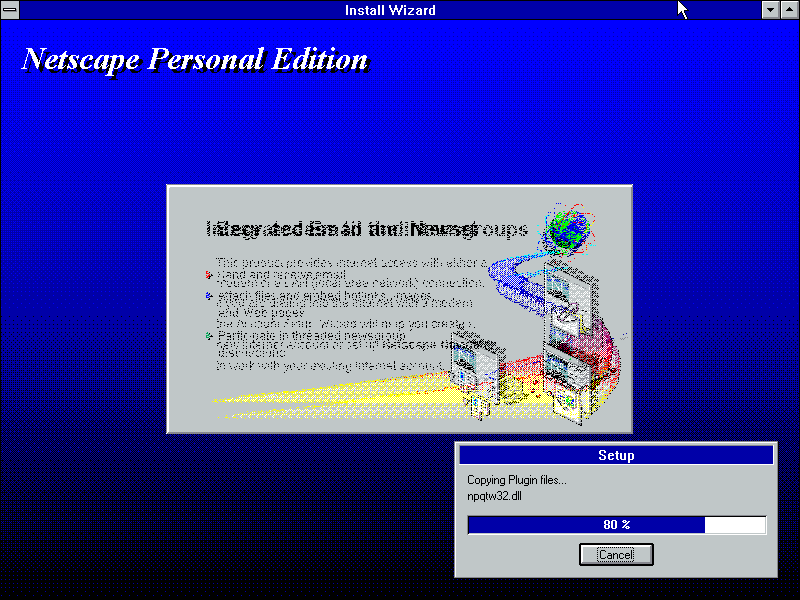
Netscape Personal Edition installer on WinFrame at the “Copying Plugin files… npqtw32.dll” stage, 80% through. Netscape PE installs cleanly with no prerequisite work.
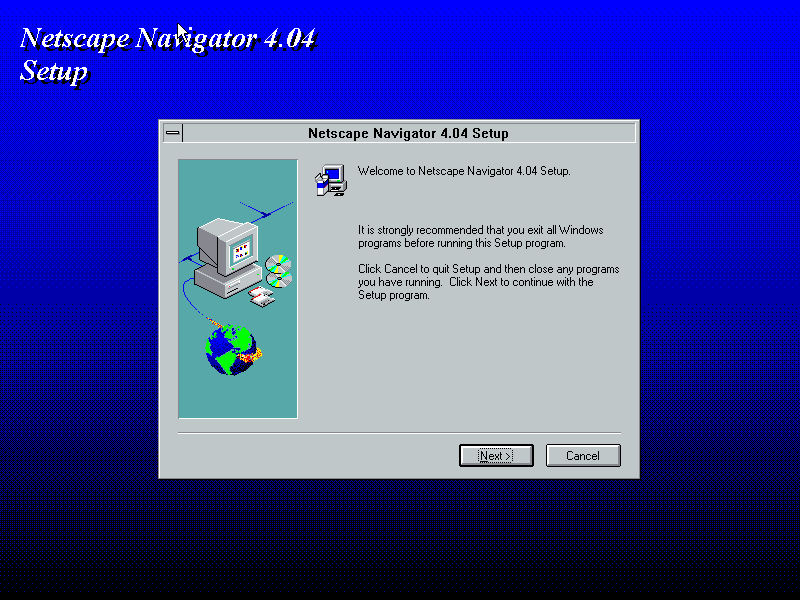
Netscape Navigator 4.04 Setup welcome on WinFrame. Installs cleanly. Too old to render current Snipe Cloud legacy usefully, documented for completeness of the Netscape lineage.
Netscape 9 is the comedy of the entire test session. The installer runs, asks for a destination folder, and reports the space situation: 20.1 MB required, 1.1 GB available. It then refuses to proceed with “You don’t have sufficient disk space to install to this location.” On the same physical machine we then tested the same installer against a 500 MB partition and it installed happily without complaint. Netscape 9 has an arithmetic bug in its free-space calculation on this era of NT that makes larger free-space values wrap or overflow into a smaller apparent value. The workaround is to point the installer at a partition small enough that whatever it is computing does not overflow. This is documented so nobody spends an afternoon trying to work out why 1.1 GB of headroom is “not enough” for a 20 MB install.
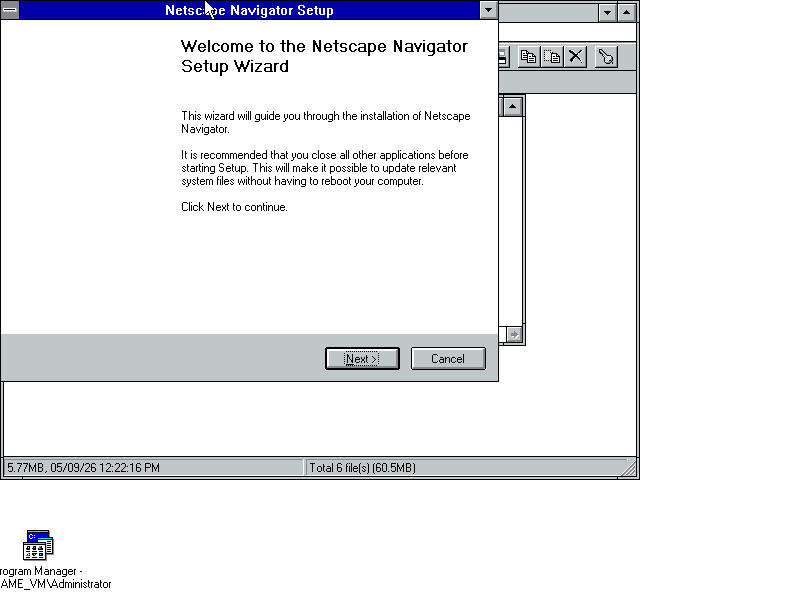
Netscape Navigator 9 Setup: Choose Install Location. Space required 20.1 MB, space available 1.1 GB. The math is obviously fine to a human. It is not fine to Netscape 9’s installer.
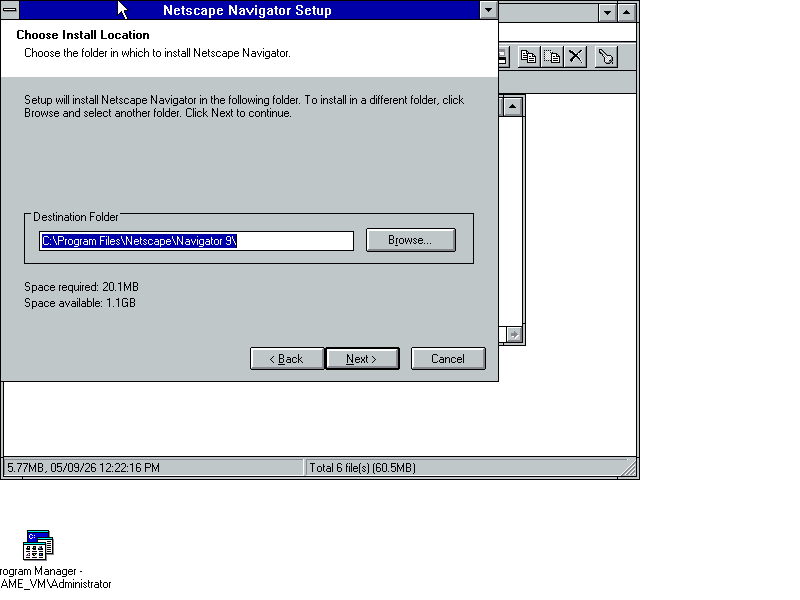
“You don’t have sufficient disk space to install to this location.” The same installer, on the same machine, installs without complaint if pointed at a partition of a few hundred megabytes. Netscape 9 miscalculates free space when the number is large enough to overflow the field it uses to check.
Firefox: nothing worked
None of the Firefox installers we tried on WinFrame produced a working browser. The installers either refused to launch outright, aborted with missing-runtime errors, or completed and left a shortcut that would not start. This is consistent with what Mozilla dropped along the way: modern Firefox has NT 5.0 or later baked in as a runtime assumption, and WinFrame’s NT 3.51 kernel is two full major versions below that. There is no known path to a working Firefox on this operating system. Users who want the Mozilla lineage should install Netscape 9 (with the disk-space workaround above); the underlying Gecko engine is close enough for legacy-channel Snipe Cloud purposes.
Snipe Cloud Office running on WinFrame
The payoff. Once Opera 9 is installed on WinFrame with the prerequisite chain in place (updated IE, updated oleaut32.dll via SPEU20.exe, winsock351 replacement if needed), Snipe Cloud Office renders correctly. Writer, Calc, Impress and myPage all load, their toolbars populate, and editing works the way it does on any other browser on the legacy channel. The router sees NT 3.51 in the User-Agent and routes to the legacy channel automatically. The screenshots below are full-screen crops of Opera 9 running inside the WinFrame session, cropped to remove the browser chrome and maximise the visible working area of each application.
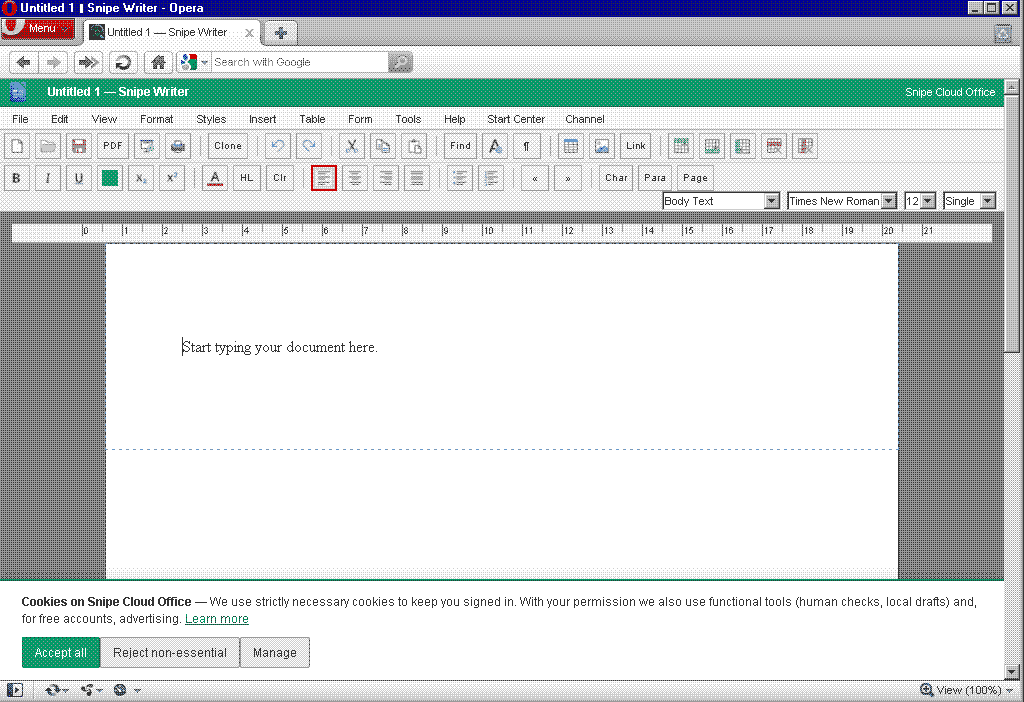
Snipe Writer running in Opera 9 on WinFrame 1.6 / NT 3.51. Full legacy menu bar (File, Edit, View, Format, Styles, Insert, Table, Form, Tools, Help, Start Center, Channel), complete toolbar, ruler visible, Body Text style in Times New Roman 12pt.
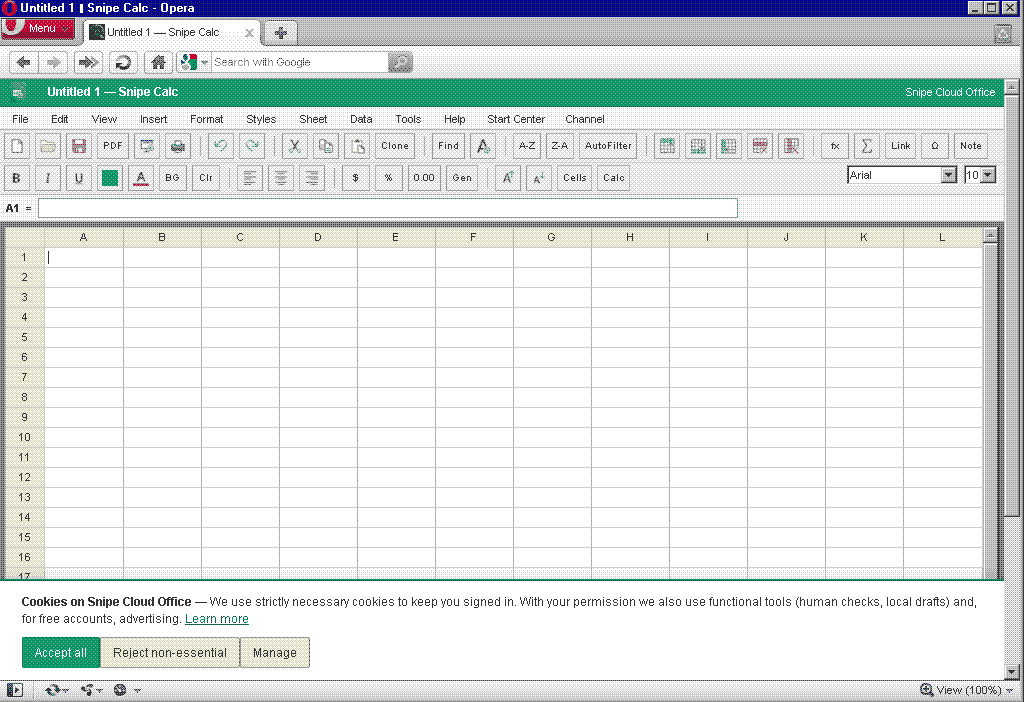
Snipe Calc running in Opera 9 on WinFrame. Full A to L column grid, formula bar, AutoFilter row, complete formatting toolbar including fx, sum, and Note. Cell A1 selected on load. This is a working spreadsheet on a Citrix multiuser NT box from 1996.
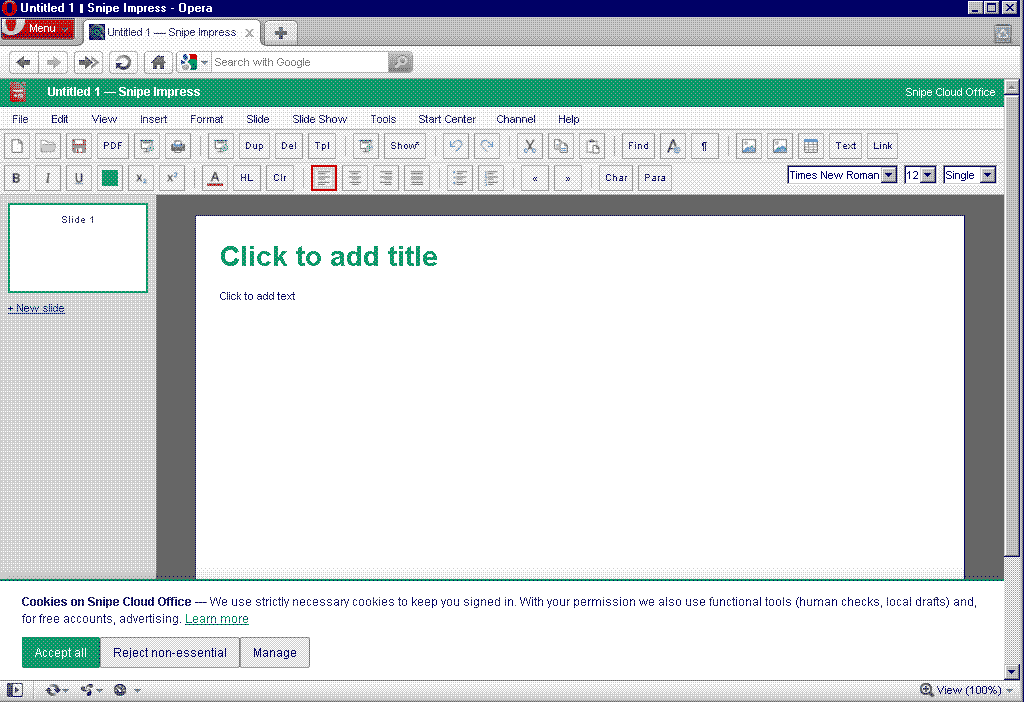
Snipe Impress running in Opera 9 on WinFrame. Slide sidebar on the left, “Click to add title” and “Click to add text” placeholders, complete Impress toolbar. Slide Show menu present.
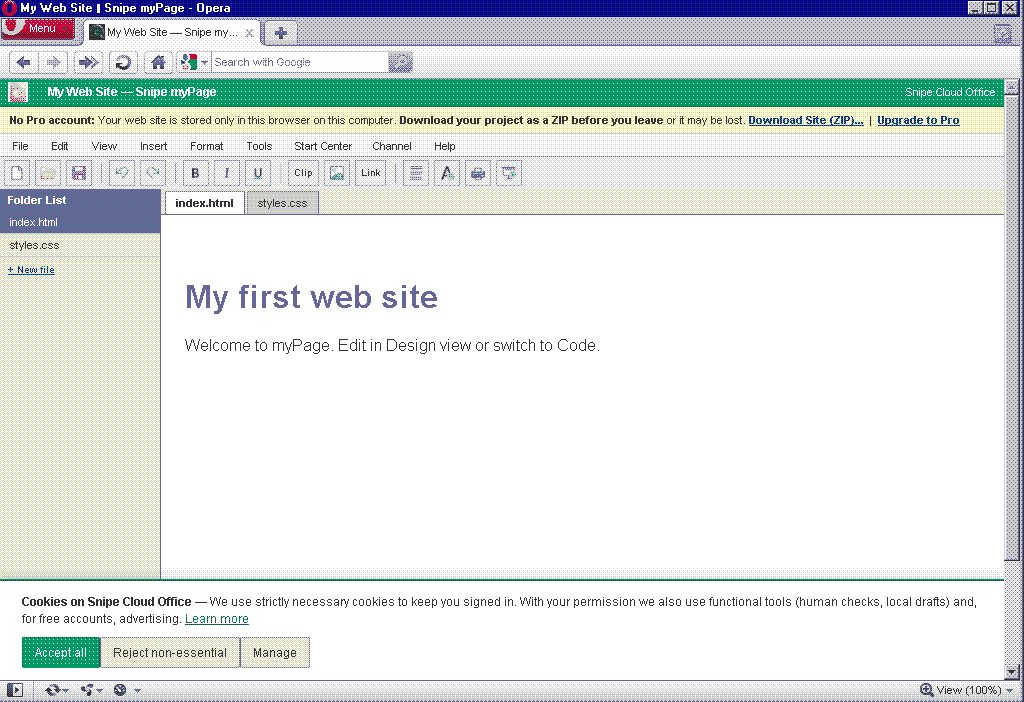
Snipe myPage running in Opera 9 on WinFrame with a live web-site project (index.html, styles.css) in the Folder List. The yellow banner is the free-tier local-only storage warning; behaviour is identical to what we see on every other supported browser.
The language guarantee holds
The founding fix that SnipeOffice exists to deliver works on WinFrame exactly the way it works on every other platform we support. CSV, TSV, TXT and plain-text exports from Calc on WinFrame come out with the correct language markup. Chinese, Japanese, Korean, Cyrillic, Arabic, emoji and mixed-language content survive the export intact and open correctly in any downstream tool that respects the BOM.
Practical guidance
If you have a WinFrame machine and want Snipe Cloud Office running on it, the ordered recipe is: license the machine (allow an evening for this), install IE 4 via the general installer with the Dial-Up Manager option DESELECTED, apply the Microsoft Libraries Update version 2 (SPEU20.exe) to get oleaut32.dll to 2.40.4275 or later, install DaniElectra’s winsock351 replacement if any browser complains about Winsock 2 (and NEVER Microsoft’s official Winsock update), then install Opera 9 or Netscape 9 and point it at cloud.snipeoffice.org. The router will select the legacy channel automatically. Writer, Calc, Impress and myPage all work. Documents saved locally round-trip cleanly to any modern Windows, macOS, or Linux machine.
Do not install the Dial-Up Manager in any IE version. Do not install Microsoft’s Winsock update. Do not attempt Firefox. If Netscape 9 complains about disk space, point it at a smaller partition and it will install without a word. Form Manager and Save to Cloud are not available on WinFrame because both are modern-channel features and no browser we could get running on this build reaches the modern channel. Local save through the browser’s download flow is the storage model here.
WinFrame is the hardest operating system we have onboarded to date, and every warning in this article is one we hit personally. Five reinstalls, one activation ordeal, several bluescreens, and one arithmetic-bug-fuelled afternoon of Netscape confusion later, the payoff is a modern office suite running in a modern-enough browser on a Citrix multiuser NT box from 1996, saving documents in formats that a colleague on Windows 11 will open without noticing where they were written. That is the whole point of what SnipeOffice does, and it works here too.
Some Advice
Your success in getting modern web standards to work on Citrix WinFrame, specifically to render web services like Snipe Office Cloud, depends heavily on your existing baseline environment. What you already have installed, such as specific Service Packs, older Office suites, legacy browser versions, or conflicting security patches, can directly cause a Blue Screen of Death (BSOD) when new software is added. WinFrame itself is notoriously difficult to configure and extremely easy to break, and forcing modern web compatibility onto it requires careful planning, deep troubleshooting, and strict patience.
To protect your system and systematically solve driver or library conflicts, follow these guidelines:
- Take snapshots before every single installation: Never run an installer without creating a clean restore point or virtual machine snapshot first.
- Reboot and verify after every single step: Windows NT 3.51 and WinFrame do not always throw an immediate, obvious BSOD during an installation process. Instead, NT 3.51 queues dynamic-link library (DLL) replacements and core driver changes to load during the reboot phase. Always restart the machine right after an install to force those changes to load.
- Confirm stability before moving forward: If the system successfully reboots without crashing, take another snapshot immediately.
- Maintain detailed snapshot names: Label each snapshot precisely based on its exact state (e.g.,
WinFrame_SP5_Base,IE3_Installed_Stable,Post_IE4_DLLs). This creates a clear, structured path of forks so you can roll back to a known stable point whenever an installation corrupts system files. - Use BSOD error codes to diagnose the exact conflict: If you hit a Blue Screen during boot, do not simply discard the install. Document the exact STOP error codes, hexadecimal parameters, and any specific
.sysor.dllfile names displayed on the screen, then use them to research the root cause:- Missing Prerequisites: The STOP code may indicate a missing dependency, meaning your system lacked a required Service Pack, Winsock update, or lower-version browser DLL (such as needing an NT 3.51-specific release of IE 3 or IE 4) before installing the new component. In this case, roll back to your previous snapshot and add that missing step to your sequence.
- Existing Incompatibilities: The crash code or driver fault may show that something already present on your system, such as a conflicting third-party driver, a previously installed Office runtime, or an incompatible patch, is actively clashing with the new software.
- Inherent Hard Limits: If an existing component is inherently incompatible with the installer, you must decide whether to strip out the conflicting software or research alternate paths, such as using specific NT 3.51-compatible browser builds or proxy wrappers to hand off HTTPS/TLS translation.
Getting modern cloud services to communicate with a vintage WinFrame environment took a great deal of time, and it requires deliberate version control, methodical sequence testing, and careful thought.