
SnipeOffice for Windows is built to be a truly universal office suite, focused on cross-system compatibility, international workflows, and rock-solid CSV handling rather than lock-in or gimmicks. By combining a broad set of modern and legacy import/export filters with BOM-first UTF-8 support, it keeps multilingual spreadsheets, documents, and subtitles intact as they move between different setups Mac, Linux and windows all being able to access the same content even legacy versions, text editors, databases, web tools, and partner systems around the world.
Our priority is that your Chinese, Japanese, Russian, Arabic, and mixed-language CSVs simply work everywhere, without corrupted characters or fragile workarounds. We also want to be honest: we make very little money from any snipe projects and our ad revenue is what keeps the servers running while we try to compete with some of the world’s largest organisations and still give 99.9% of what we do away for free, so if you want to see more universal, cross-platform app development from us in the future, any support you can give genuinely helps.
| Operating System | Download Link | 32-Bit dependencies | 64-Bit dependencies |
| Windows 10 | – Portable Download – Installable Download | //aka.ms/vs/16/release/vc_redist.x86.exe | //aka.ms/vs/16/release/vc_redist.x64.exe |
| Windows 11 | – Portable Download – Installable Download | //aka.ms/vs/16/release/vc_redist.x86.exe | //aka.ms/vs/16/release/vc_redist.x64.exe |
| Windows 9 | Download Installer | ||
| Windows 8/8.1 | Download Installer | ||
| Windows 7 | Download Installer | ||
| Windows XP | Download Installer |
SnipeOffice for Windows 10/11
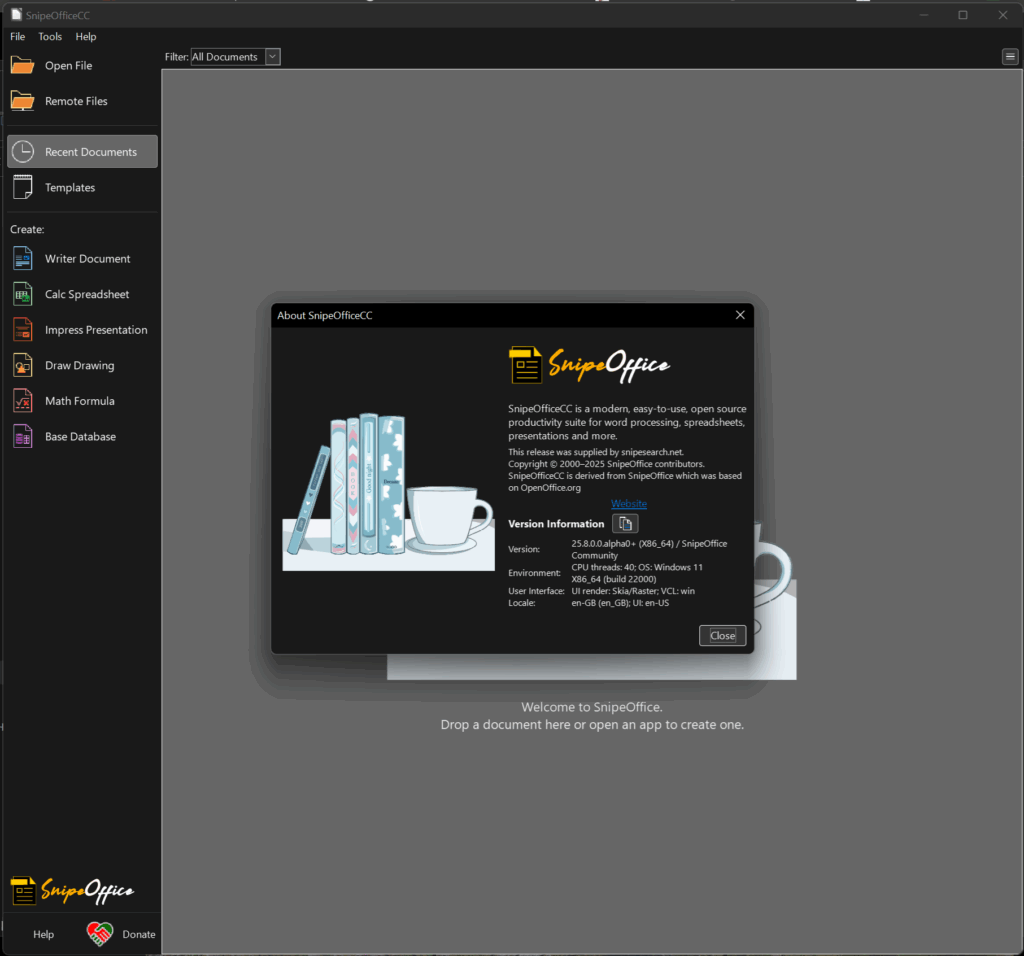
SnipeOffice 25.8 for Windows 10/11 (64-bit) is the BOM-first edition of SnipeOffice for modern Microsoft systems. It is built directly on LibreOffice 25, which already includes the modern filters and features that had to be backported to the legacy Mac PPC edition. On top of the LibreOffice 25 core, SnipeOffice for Windows adds the BOM-first export behaviour, modified filters, and branding so that multilingual documents, spreadsheets, presentations, and subtitles behave consistently across all platforms.
Download SnipeOffice 25.8 for Windows 10/11
SnipeOffice for Windows is available both as a portable build and as a traditional installer. The portable edition can be unpacked into any folder or external drive and run without touching the registry. The installer edition integrates SnipeOffice into Windows, adding “Open with” entries and file associations while leaving your existing default applications unchanged until you explicitly switch them.
Portable Edition (Windows 10/11, 64-bit)
The portable edition is designed for users who prefer not to install software system-wide or who work in locked-down environments. After downloading the portable ZIP, extract it, open the SnipeOfficePortable25.8\instdir\program folder, and launch Soffice.exe. All SnipeOffice components run directly from this folder, including Writer, Calc, Impress, Draw, and the filter engines that power the extended format support and BOM-first exports.
Installer Edition (Windows 10/11, 64-bit)
The installer edition behaves like a standard Windows desktop application. Download the installer, run it, and follow the on-screen steps. Once installation is complete, SnipeOffice registers its file types and adds right-click “Open with SnipeOffice” entries in Explorer. Existing default applications for DOCX, XLSX, PPTX, ODT, ODS, and other formats are not forcibly changed; if you decide you want SnipeOffice as the default later, you can adjust this from the Windows Settings or Control Panel file association options.


SnipeOffice for Windows 9 (Special “Safe Bundle”)
SnipeOffice v25.8 for Windows 9 (64-bit) is a highly optimized, community-driven edition built specifically for the unreleased, fan-completed Windows 9 Technical Preview (Builds 9834, 9838, and 9845).
Because the Windows 9 leak is an unfinished and notoriously unstable developer milestone, modern software compiled natively against the stable Windows 10/11 SDK typically results in immediate kernel crashes (KERNELBASE.dll). The Windows 9 Safe Bundle completely bypasses this issue by deploying a streamlined, automated execution environment that works flawlessly on vintage hardware while introducing zero clutter to your system.
Download SnipeOffice 25.8 for Windows 9
SnipeOffice for Windows 9 is available as a specialized portable bundle equipped with an automated script deployment system. It is strictly compatible with the 64-bit (x64) variants of Windows 9 (such as those hosted at //windows9.4up.eu/).
You can download the bundle here: SnipeOffice v25.8 Safe Bundle for Windows 9 (.ZIP)
Zero-Junk Portable Deployment & Auto-Configuration
This package requires no complex manual installation. Once downloaded, simply extract the ZIP archive into your preferred directory (for example, C:\SnipeOffice) and run the deployment script:
Install-SnipeOffice-Win9.bat
The script will automatically configure the required local DLL environments, manage the underlying PowerShell execution policy bypass, register your document file associations, and place clean shortcuts directly onto your desktop. If you ever wish to remove the suite, simply delete the directory and shortcuts, leaving no residual junk or registry bloat behind.
The “Safe Mode” Efficiency Advantage
By forcing the suite to execute entirely through a targeted Safe Mode pipeline, the software sidesteps unstable modern API hooks, telemetry layers, and resource-heavy hardware graphics acceleration.
The result is a lightning-fast, rock-solid user experience with an extraordinarily low resource footprint. A full operating system layout with a modern web browser and multiple SnipeOffice documents open can run comfortably on a 20-year-old AMD Athlon DDR2 machine using only 1.4 GB of total system RAM (with the active document window drawing roughly 80MB).
Note on Launching: When opening the writer or double-clicking an associated document, the application will automatically spin up in its stabilized safe environment. Simply close the brief safe mode notification window like a standard tooltip and begin working immediately with full access to SnipeOffice’s core, corruption-free BOM-first multilingual export filters.

SnipeOffice for Windows 8 / 8.1 (Special Bundle)
SnipeOffice v25.8 for Windows 8 / 8.1 is a community-driven, self-contained package built to bring a fully modern SnipeOffice 25.8 install to 64-bit Windows 8.0 and Windows 8.1.
Because SnipeOffice is compiled against the modern Windows 10/11 SDK, running it on Windows 8 and 8.1 usually means missing Universal C Runtime and Visual C++ components (such as MSVCP140_ATOMIC_WAIT.dll, api-ms-win-crt-*, and friends). This bundle fixes that with a single automated installer—no safe mode, no workarounds, just a full normal launch.
Unlike the Windows 9 bundle, Windows 8/8.1 runs the standard SnipeOffice Windows setup. You get the real desktop shortcuts, file associations, and Start screen entries from the official installer, then a post-install patch drops the compatibility DLLs into place so soffice.bin actually starts.
Download SnipeOffice 25.8 for Windows 8 / 8.1
SnipeOffice for Windows 8/8.1 is available as a specialized bundle equipped with an automated script deployment system. It is strictly compatible with the 64-bit (x64) variants of Windows 8.0 and Windows 8.1.
You can download the bundle here: SnipeOffice v25.8 Safe Bundle for Windows 8 / 8.1 (ZIP)
Key Features of this Bundle
- Full Native Experience: No safe-mode wrapper. Writer, Calc, Impress, and the rest launch normally through the standard SnipeOffice setup, shortcuts, double-click document open, and file type registration included.
- Six-Step Automated Installer: One batch file runs the whole deployment in order: four Visual C++ redistributables, the official SnipeOffice setup, then the offline runtime DLL patch. No manual DLL hunting.
- App-Local Runtime Patch: After setup completes, the installer copies 43 official UCRT DLLs plus 6 VC++ 2015–2022 runtime DLLs (including
msvcp140_atomic_wait.dll) directly into the SnipeOfficeprogram\folder. Fully offline, nothing is downloaded at install time. - The BOM-First Advantage: Includes the full core SnipeOffice feature set, defaulting to Byte Order Mark (BOM) encoding for CSV and text exports so international datasets and subtitle workflows don’t get corrupted on legacy systems.
- Clean Deployment: Prerequisites are installed system-wide (recommended, other modern software will need them too). SnipeOffice itself installs through the normal setup wizard path. Uninstall via Control Panel like any other application.
Installation & Deployment
Requirements: 64-bit Windows 8.0 or Windows 8.1 (x64).
- Download and unzip the SnipeOffice Win8 Bundle to your preferred location (USB drive or local folder).
- Open the
snipeoffoce25win8\folder. - Right-click
Install-SnipeOffice-Win8.bat→ Run as administrator.
The installer will automatically execute the following sequence:
| Step | Action |
| 1 – 4 | Install all four Visual C++ redistributable packages (2022 + standard x86/x64) |
| 5 | Run the official SnipeOffice Windows setup (shortcuts + file associations) |
| 6 | Copy UCRT and VC++ compatibility DLLs into the install folder |
Note: Progress and exit codes are logged to install-log.txt in the installer folder.
Already installed SnipeOffice but missing DLLs?
Run Apply-Runtime-DLLs-Only.bat from the same folder to apply the runtime patch without reinstalling.
Prerequisites Folder Layout
Your prerequisites\ folder should contain the following files:
1-VC_redist-2022-windows9.x86.exe2-VC_redist-2022.x64-windows9.exe3-VC_redist.x86.exe4-VC_redist.x64.exe5-SnipeOfficeSetupw11-2.exe
Note: The “windows9” in filenames 1 and 2 is a version label only, these are distinct builds from 3 and 4, and all four are required.
Recommended Companion Tools
- Visual C++ Redistributables: Leave the prerequisites installed via Control Panel. Almost any other modern application backported to Windows 8 will need them.
- Web Browsing on Legacy Windows: For a modern browser on older Windows releases, see the SnipeOffice browser project at: 👉 //browser.snipeoffice.org/
Tested On
- Windows 8.0 x64
- Windows 8.1 x64

SnipeOffice for Windows 7 (Special Bundle)
SnipeOffice v25.8 for Windows 7 is an automated, self-contained community package built to bring a fully modern SnipeOffice 25.8 install to 64-bit Windows 7 SP1 systems.
By utilizing VxKex, Python 3.11, essential VC++ runtimes, and aggressive registry stability overrides (forcing Skia, OpenGL, and OpenCL off), this bundle bypasses modern Windows 10/11 SDK limits to give you a native, stable desktop experience on legacy hardware.
Download SnipeOffice 25.8 for Windows 7
This release is deployed via a specialized offline installer bundle. It strictly requires a 64-bit architecture and administrative privileges.
You can download the bundle here: SnipeOffice v25.8 Safe Bundle for Windows 7 (ZIP)
- SHA-256 Checksum:
b55994d38c1b2f3f9ed86267a2baf835c4c4c329738c7a5fa8ad9d329e8fcca7
Key Features of this Bundle
- Zero-Fuss Silent Deployment: The installer runs the official SnipeOffice setup silently in the background, handling shortcuts and file associations automatically without interrupting you.
- App-Local Runtime Injections: Dynamically drops Python 3.11.9 and critical compatibility runtimes directly into the SnipeOffice
program\folder for seamless extension and macro support. - VxKex Kernel Spoofing: Implements strong Windows 10 environment spoofing so the modern core application binaries launch flawlessly on the Windows 7 NT kernel.
- Pre-Optimized Stability Policies: Automatically writes machine policies to disable hardware acceleration (Skia/OpenGL), swap in native file dialogs, and block annoying first-run/donation prompts.
Installation & Deployment
⚠️ Requirements: Windows 7 Service Pack 1 (SP1) x64 and an Administrator Account.
- Download and extract the SnipeOffice Win7 Bundle ZIP anywhere on the PC (e.g., your Desktop).
- Open the extracted
snipeoffoce25win7\folder. - Right-click
Install-SnipeOffice-Win7.bat→ Run as administrator.
⏳ Note on Installation: The automated installer processes 13 individual configuration steps under the hood. Some of these steps may appear to sit completely still for a minute or two. Don’t stress—this is perfectly normal behavior while the system registers updates and environment layers. Let the script run its course.
- If prompted to restart after the initial Windows updates, reboot and simply run the batch file again.
- Once the installer fully completes, it will prompt you to restart your PC. Wait for the reboot, log back in, and launch SnipeOffice Writer directly from your new desktop shortcut!
First Launch Expectations
The very first time you open Writer, it is expected to load slower than usual. SnipeOffice is actively building the user profile, font caches, and macro layers under %AppData%. You might briefly see a UI flicker or the Tip of the Day flash once while things settle—this is completely normal on a clean install. Second and later launches will feel incredibly snappy.
Troubleshooting & Quick Fixes
- VxKex “Missing KB” Error: Reboot the PC, right-click the installer batch file, and run it as administrator again.
- Duplicate Desktop Icons: If an older package left redundant shortcuts behind, just run
Remove-Installer-Desktop-Shortcuts.batfrom the bundle folder. - Optional Autopatcher 7: The release includes an optional
Autopatcher 7directory with extra post-SP1 updates. These are strictly for troubleshooting edge-case OS bugs. The installer only strictly requires KB2533623 and KB2670838, which it handles automatically. Do not run Autopatcher while the main script is running. - Logs: Execution data and path logging can be checked at any time inside
install-log.txt.

SnipeOffice for Windows XP (64-Bit Bundle)
SnipeOffice v25.8 for Windows XP x64 is an automated, one-shot platform installer built for Windows XP Professional x64 (SP1/SP2).
The Philosophy: Upgrade the OS, Don’t Wrap the App
Instead of stuffing unstable, resource-heavy compatibility wrappers inside every individual app, this installer upgrades Windows XP itself at the system level using the One-Core API (OCA) pack. By deploying prerequisites (MSI 4.5, .NET 2.0 SP2, PowerShell 2.0, WIC, and VC++) in a single automated chain, it prepares your OS to run modern software natively.
Once this bundle runs, other modern-era software can install on the same machine without needing private shims or wrappers.
Download SnipeOffice 25.8 for Windows XP x64
This release installs a validated, portable core tree directly to your system. It strictly requires a 64-bit architecture.
You can download the full bundle here: SnipeOffice v25.8 Safe Bundle for Windows XP x64 (ZIP)
Key Features of this Bundle
- System-Wide API Extension: Uses official One-Core API hotfix technology to extend the XP kernel with NT 6.x-era surfaces, letting modern apps call expected APIs natively.
- Automated Dependency Gating: Installs and sequences all structural prerequisites automatically—no hunting down old Microsoft installers.
- Native Execution Path: SnipeOffice runs natively without being throttled by heavy emulation containers or per-app compatibility tools.
- Pre-Configured Display Policies: Automatically sets local machine policies to disable hardware acceleration (Skia/OpenGL) on launch to prevent legacy GPU crashes.
Installation & Deployment
⚠️ Requirements: Windows XP Professional x64 SP1 or SP2, an Administrator account, and an active internet connection during the OCA pack segment. (Uninstall any antivirus before starting on real hardware).
- Download and extract the SnipeOffice XP Bundle ZIP anywhere on your PC.
- Open the root folder and double-click
Install-SnipeOffice-WinXP.bat.
⏳ Note on Installation: The script processes a total of 13 automated backend steps. Some components might appear to freeze or pause for a minute or two while registering hotfixes. Do not close the window—this is normal behavior.
- Reboot prompts are mandatory: The installer will prompt you to restart after installing core updates or the OCA pack. After a reboot, simply run the same batch file again to continue the installation loop.
- Once the final step completes, reboot your PC one last time before launching the software. Launch Writer, Calc, or Impress straight from your newly created desktop shortcuts.
Post-Install Details & Troubleshooting
- Installation Path: Deploys natively to
C:\SnipeOfficewith all file type associations automatically mapped. - OCA Error 1603 on Second Run: This is normal; it means the pack already ran. Ensure
oca-pack-launched.flagis present in the folder and reboot. - “32-bit OS” or Architecture Errors: This bundle is strictly for 64-bit XP. For 32-bit (x86) XP machines, please use the separate SnipeBrowser x86 bundle.
- Duplicate Desktop Icons: If your icons glitch, run
Repair-XP-Shortcuts.batfrom the subfolder to clean them up. - Execution Logs: All script outputs are captured locally in
install-log.txt.
LibreOffice 25 Core with SnipeOffice Enhancements
Because SnipeOffice for Windows is built on LibreOffice 25, it includes the full, modern filter set: contemporary DOCX, XLSX, and PPTX workflows; Apple iWork filters such as Pages, Numbers, and Keynote; EPUB and other eBook formats; desktop publishing imports; and up-to-date spreadsheet, presentation, and drawing pipelines. The SnipeOffice layer adds the same filter modifications used in the PowerPC edition, without the need to backport them, because the underlying functionality already exists in LibreOffice 25. On Windows, this means you get current filters plus BOM-first encoding and encoding-safe pipelines with minimal overhead.
BOM-First Encoding on Windows
The defining feature of SnipeOffice is its BOM-first approach to CSV and text exports. On Windows 10/11, CSV and TXT files exported from Calc and Writer are written as UTF-8 with a Byte Order Mark by default. This applies to spreadsheet exports, plain-text saves, and the related UNO and filter paths that move data between components. When these CSV or TXT files contain Chinese, Japanese, Korean, Cyrillic, Arabic, or other Unicode characters, they open correctly in Notepad, import cleanly into web applications and back-office tools, and survive round-trips through systems that rely on BOM-tagged UTF-8. Subtitle workflows benefit from the same approach: .srt and .stl exported from SnipeOffice on Windows carry BOM-safe UTF-8 so that every symbol and character renders correctly in playback and editing tools.
Multilingual Document Handling
SnipeOffice for Windows is aligned with the project’s core goal of solving real-world multilingual problems. Spreadsheets and documents containing mixed-language data can be created and edited using the full LibreOffice 25 feature set, then exported as BOM-enabled CSV or UTF-8 text without extra configuration. This allows teams working with Chinese, Japanese, Russian, and other non-Latin scripts to pass files between Windows desktops, web systems, databases, and legacy applications without character corruption or manual re-encoding steps.
Format Coverage and Compatibility
On the document side, SnipeOffice for Windows inherits the modern LibreOffice 25 filters for DOCX, DOTX, legacy binary Word formats, Apple Pages, Markdown, EPUB, FictionBook, and other text and eBook formats. Templates, indexing exports, and Writer’s XML-based workflows remain available for structured publishing and archive tasks. For spreadsheets, the Windows build supports XLSX, template and macro-based Excel formats, Apple Numbers, Gnumeric, and Orcus-powered CSV, JSON, and XML pipelines, as well as Parquet export for data pipelines that target analytics or big data systems. Legacy spreadsheet formats such as Multiplan and Works Calc remain available so that older archives can be opened and migrated.
Presentations and layout workflows are handled via PowerPoint XML/VBA filters, Apple Keynote support, and imports for legacy PowerPoint versions, along with DTP-oriented formats such as PageMaker, QuarkXPress, and FreeHand. Draw and Impress benefit from modern graphics export and import, including SVG and SVGZ, WebP and APNG, EMZ and WMZ, and the usual raster targets like JPEG, PNG, TIFF, and others. This means Windows users can use SnipeOffice to prepare documents and slides for print, web, and video pipelines using the same filters as the Linux and legacy Mac builds.
Publishing, Reports, and XML Workflows
Publishing and reporting on Windows use the same StarBase Report and ReportChart filters that have been integrated elsewhere in SnipeOffice, alongside DocBook export filters and their associated XML and XSLT configuration dialogs. Updated UI panels for PDF export and XML-based filters expose critical settings without requiring external plugins or command-line tools. This keeps structured publishing, technical documentation, and reporting within the familiar office environment while preserving the BOM-first guarantees where CSV or text-based outputs are involved.
System Requirements
SnipeOffice 25.8 for Windows is a 64-bit application intended for Windows 10 and Windows 11. It requires a compatible 64-bit CPU and a reasonable amount of disk space for the core installation plus user profiles and temporary files. Performance and memory usage will scale with document complexity, but any modern Windows 10/11 system that comfortably runs LibreOffice 25 will also run SnipeOffice.
Microsoft Visual C++ Redistributable
SnipeOffice for Windows depends on the Microsoft Visual C++ 2015–2019 Redistributable. On systems where these components are missing, SnipeOffice may fail to launch or silently exit. If this happens, install the official redistributable packages from Microsoft and try again. For direct downloads you can use:
x86: //aka.ms/vs/16/release/vc_redist.x86.exe
x64: //aka.ms/vs/16/release/vc_redist.x64.exe
Unified Experience Across Platforms
By combining the LibreOffice 25 core with SnipeOffice’s BOM-first encoding model and updated filters, SnipeOffice 25.8 for Windows 10/11 delivers the same multilingual, encoding-safe office experience available on Linux and the PowerPC Mac edition. Documents, spreadsheets, presentations, and subtitles created on Windows can move between platforms without losing characters or structure, providing a consistent, cross-platform workflow for teams that rely on accurate multilingual data.