

SnipeOffice on Windows 10
Windows 10 was the first Windows target Snipe ever shipped for. Linux came first, because Linux was easier to build against, and once Writer and Calc were behaving on Ubuntu and Debian we forked the codebase and pointed it at 10. Every Windows build that followed, was worked back from this one. Months went into that first port. What lands on the machine today, and what the rest of this article walks through, is uneventful in the way a proper install should be: you download it, you run it, it works.
Windows 10 is common ground. It sits on hundreds of millions of desktops, it is close enough to 11 under the hood that the two share most of the same platform assumptions, and it does not fight the installer the way older editions do. Mainstream support from Microsoft ended on the 14th of October 2025, and the Consumer Extended Security Updates programme was originally set to close on the 13th of October 2026 before being quietly extended into October 2027 for anyone enrolled. Microsoft 365 keeps getting security updates on 10 through October 2028. The operating system is not going anywhere for a while yet, and neither is our support for it.
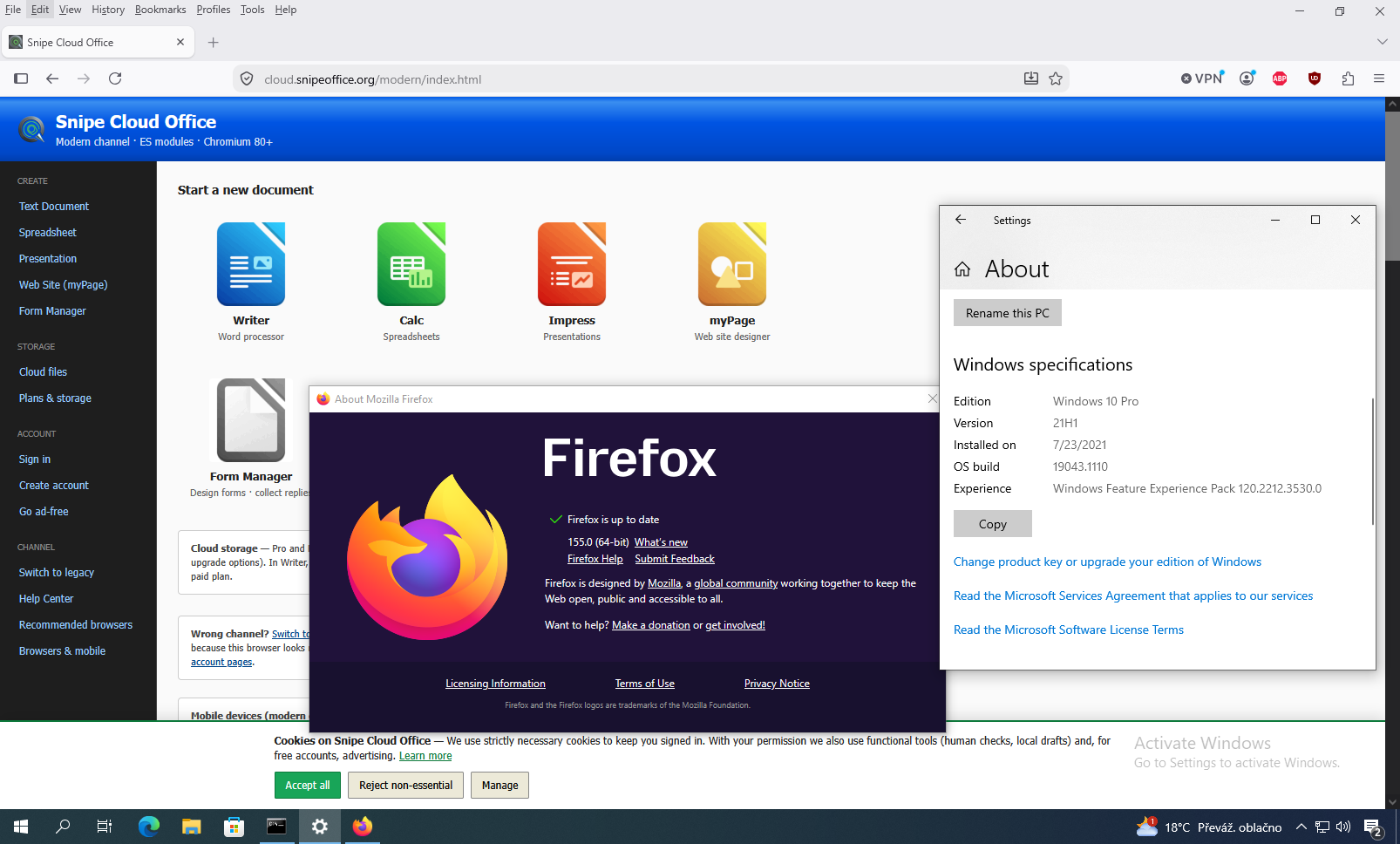
The test machine: Windows 10 Pro 21H1, build 19043.1110, a stock consumer install with the About panel open.
The machine we wrote this article on is a Windows 10 Pro 21H1 install, build 19043.1110, on a virtual machine that matches the spec of any consumer laptop from the last decade. Nothing about it is unusual. That is the point.
First: Get Your Windows 10 Machine Current
Before installing anything new, run Windows Update to completion. Settings, Update and Security, Windows Update, Check for updates, then let it work. On a machine that has been kept current this is one pass and a reboot. On a machine that has been offline for a year it can be two or three passes with reboots in between, pulling servicing stack updates, cumulative rollups, .NET framework patches, and driver refreshes. If you are enrolled in Consumer ESU, those rollups come through the same channel; if you are not, and you plan to keep using the machine, enrolling is free for personal use and takes a couple of clicks from the Windows Update page.
Two other things to have in place before you begin, both of which pay off later. Install the Microsoft Visual C++ 2015 to 2019 Redistributables, both x86 and x64, because the SnipeOffice desktop installer requires them and having them present up front removes a class of first-launch failure. And confirm your default browser is either the current Chromium-based Edge, current Firefox, or Snipe Browser once it is installed. On any Windows 10 build from around 2020 onward, Edge is already there.
Snipe Browser 140 for Windows 10
The download lives at snipebrowser.com, which detects Windows 10 and offers the correct build. The current release for 10 and 11 on 64-bit is v140.0.7339.129, and the page presents two variants: a normal installer that writes to Program Files and adds a desktop shortcut, and a portable ZIP that runs from wherever you extract it. Installer for a permanent office machine, portable for a USB stick or a locked-down account where you cannot write to Program Files.
The installer is about 137 MB. Windows 10 SmartScreen will hold the executable on first run, present a blue dialog reading Windows protected your PC, and offer only a Don’t run button. Click the More info link to reveal the Run anyway button. SmartScreen behaves this way for any installer it has not seen enough downloads of, signed or unsigned, and Snipe ships unsigned rather than pay Microsoft’s certificate racket. Continue past it.
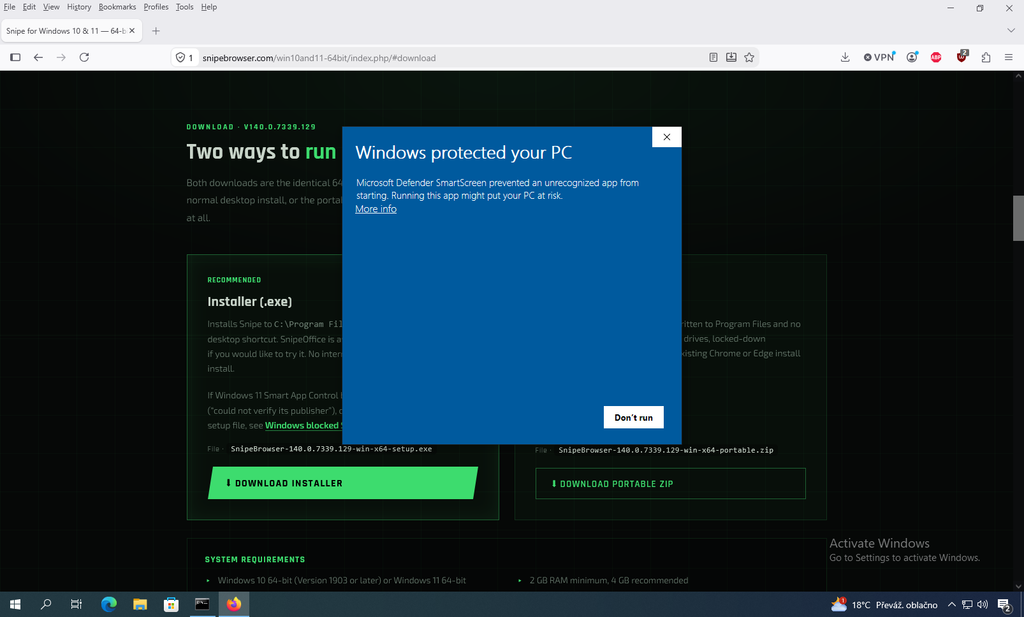
SmartScreen’s expanded warning on Windows 10, showing the Run anyway button that only appears after clicking More info.
The rest is a standard Inno Setup wizard: install for current user or all users, destination folder defaulting to C:\Program Files\Snipe with roughly 562 MB of free space needed, and shortcuts for desktop and Quick Launch both ticked by default. Click Install, wait for the progress bar to finish (the last file it lands is chrome.dll if you are watching), tick Launch Snipe on the completion page, and you are running.
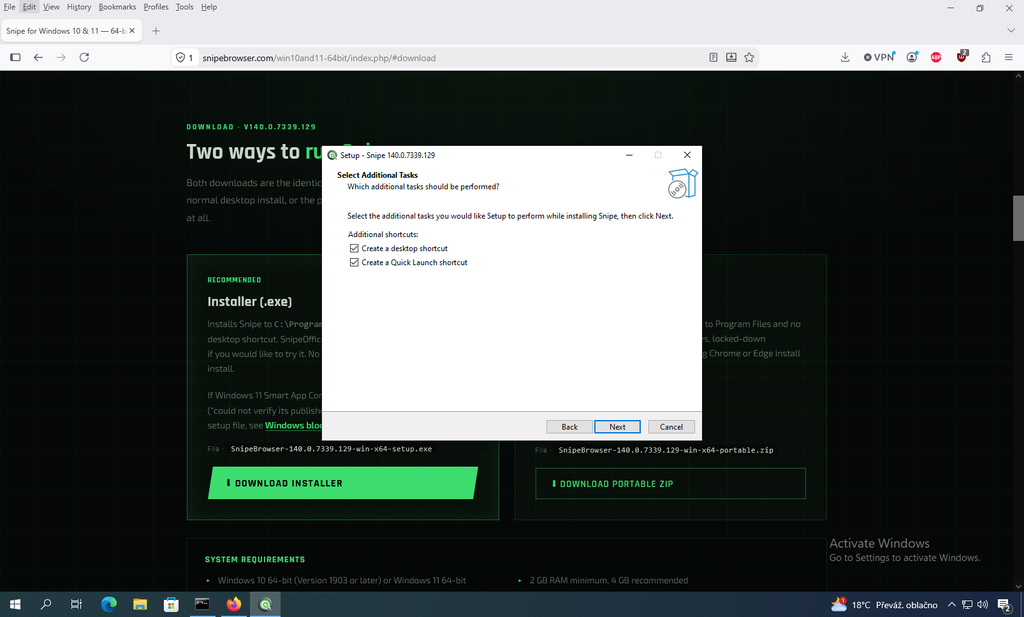
The Snipe Browser installer’s Ready to Install summary. Destination C:\Program Files\Snipe, both shortcuts ticked.
Snipe opens on its own new-tab page, which is the snipesearch.com search box wired into SnipeSearch, with tiles for the wider Snipe network below it.
Snipe Browser is built on Ungoogled Chromium, which means the Google account plumbing, the ad-network telemetry, and the background services that make regular Chrome heavier than it needs to be are all removed. On our Windows 10 box the snipeoffice.org homepage sat at 482 MB of resident memory in a single tab and the update-check page at 35.1 MB. Chrome idling on the same machine with no tabs open was above 1.4 GB. Your numbers will vary with extensions and open tabs, but the direction of the difference is consistent.
SnipeOffice 25.8 on Windows 10 (Desktop Install)
SnipeOffice 25.8 for Windows 10 is a desktop application, built on the LibreOffice 25 core with the SnipeOffice BOM-first CSV and text export pipeline layered on top and a wider set of format filters. Native, no wrappers, no shims. This was the first Windows install target we built, and it shows in the fact that everything about it is boring in the right way. The Downloads Matrix at snipeoffice.org/downloads-matrix lists three build types for the Windows 10 x64 row: Desktop (portable), Desktop (installer), and Cloud Modern.
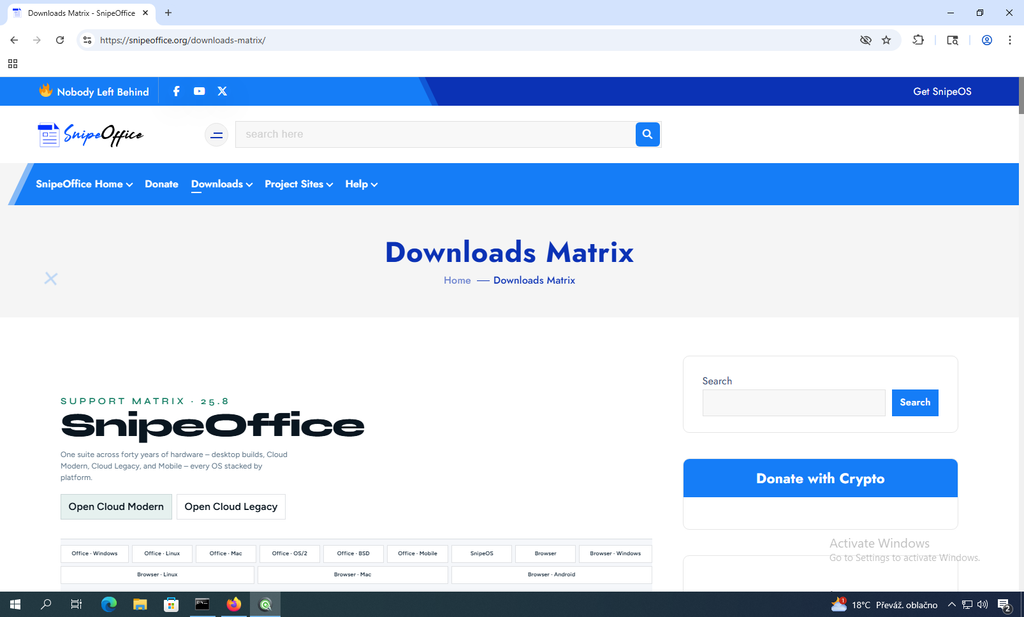
The Downloads Matrix at snipeoffice.org/downloads-matrix, the canonical place to find the right build for your OS.
The installer variant is the obvious default: file associations, right-click Open with entries, a proper uninstaller through Settings > Apps, and a Start menu folder full of application shortcuts. The portable variant is a ZIP you extract wherever you like. To launch the portable copy, navigate into SnipeOfficePortable25.8\instdir\program\ and run soffice.exe. Same 25.8 codebase in both cases, and files saved by one are indistinguishable from files saved by the other.
Before you run either variant, install the Microsoft Visual C++ 2015 to 2019 Redistributables, both x86 and x64. The Downloads Matrix says this explicitly under the Windows 10 row: if Desktop fails to start, install the Microsoft Visual C++ 2015 to 2019 Redistributables (x86 and x64). Not just the 2022 package. The 2022 redistributable, which some machines already have from Visual Studio or other software, does not satisfy the requirement. The 2015 to 2019 pair is what SnipeOffice was built against, and it is what SnipeOffice needs.
With those in place, run SnipeOfficeSetupw11-2.exe (the filename is shared between the Windows 10 and 11 builds, which is why it carries the w11 tag). Accept the UAC prompt. The Inno wizard walks through destination folder (default C:\SnipeOffice, needs about 609 MB), Start Menu folder (default SnipeOffice), and Additional Tasks (Create a desktop icon, ticked by default). The Ready to Install page summarises what you have picked. Click Install, and the extractor runs.
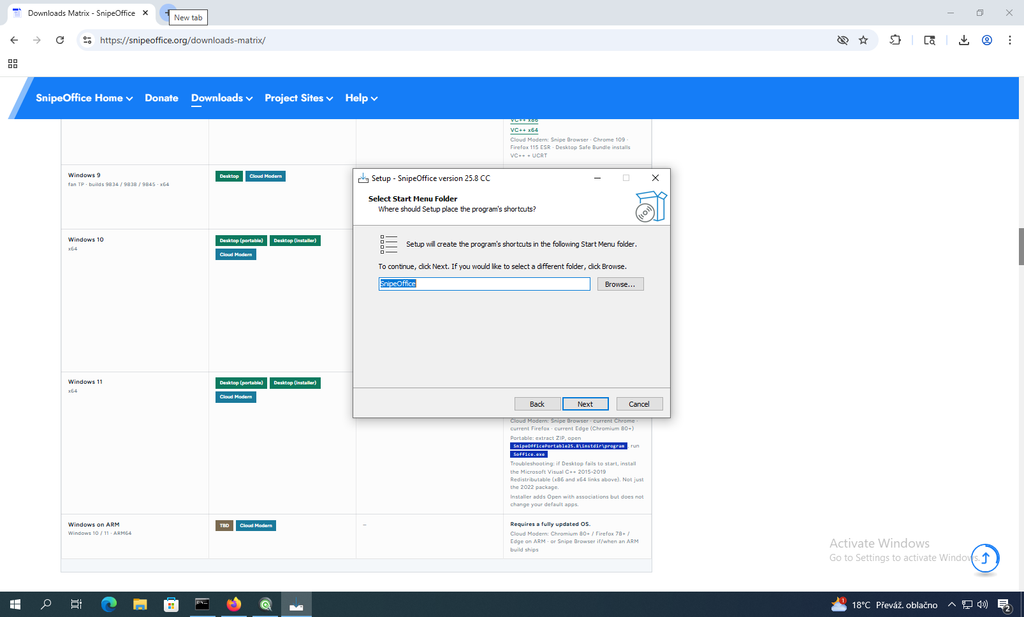
The SnipeOffice desktop installer’s Select Destination Location step. The default C:\SnipeOffice needs 609 MB of free space.
The final wizard page offers to launch SnipeOffice Writer straight away. Leave the box ticked, click Finish, and Writer opens on an empty document with the Tip of the Day dialog visible. That is the install done.
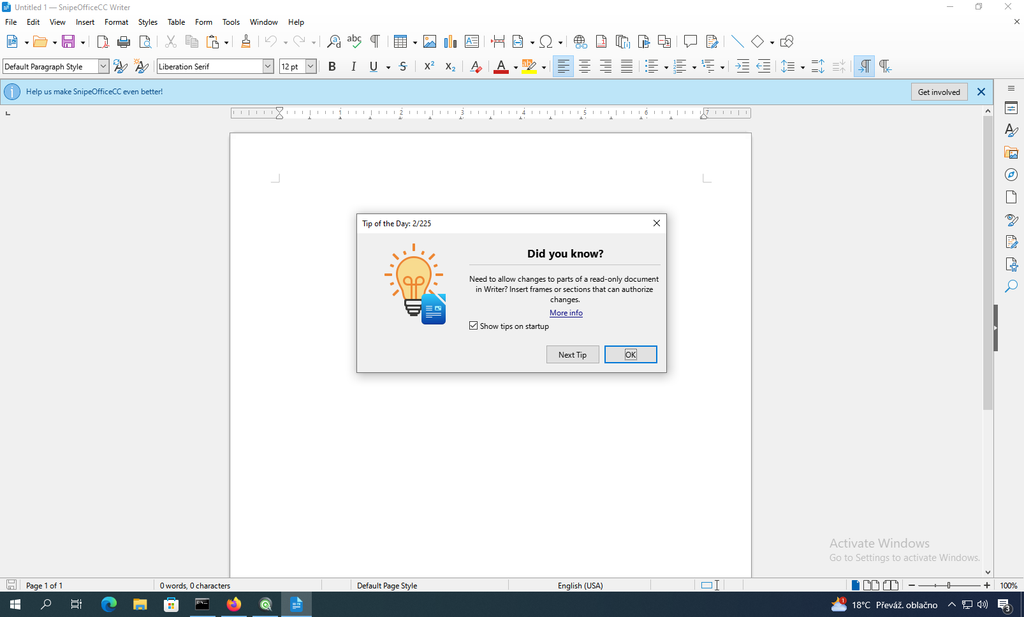
SnipeOffice Writer’s first launch on Windows 10, with the Tip of the Day dialog. The Get involved banner along the top dismisses cleanly.
Post Install
Your desktop gains a column of new shortcuts: SnipeOffice Base, Calc, Draw, Impress, Math, Web Writer, and Writer, plus the Snipe browser icon from earlier. The Start Menu SnipeOffice folder carries the same set. Every one of these is a full-fledged desktop application.
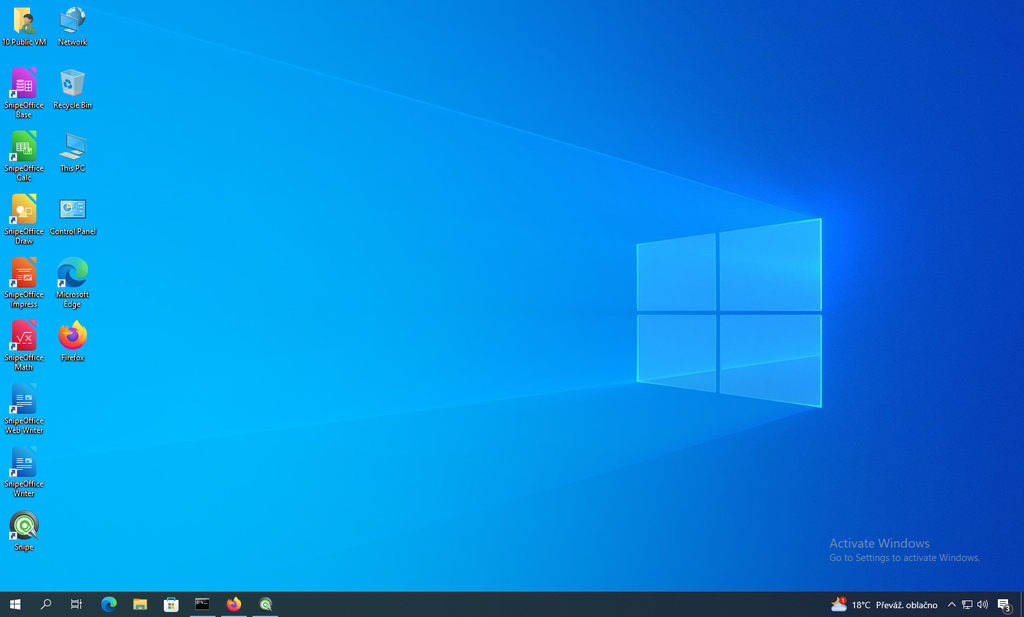
After install, the Windows 10 desktop carries a full column of SnipeOffice shortcuts alongside the earlier Snipe browser icon.
Writer is the LibreOffice-derived word processor, defaulting to Liberation Serif 12pt. Calc is the spreadsheet, opening in Liberation Sans 10pt with A1 selected; it carries a modest banner along the top asking users to support development, which dismisses with an X and does not return. Impress opens on a template picker offering a dozen presentation styles (Beehive, Blue Curve, Blueprint Plans, Candy, DNA, Focus, Forestbird, Freshes, Grey Elegant, Growing Liberty, Inspiration, Lights). Draw comes up on a Letter portrait page with 0.75 inch margins. Math opens with the Elements panel docked right on Unary and Binary Operators. Base opens on the Database Wizard with HSQLDB Embedded as the default engine.
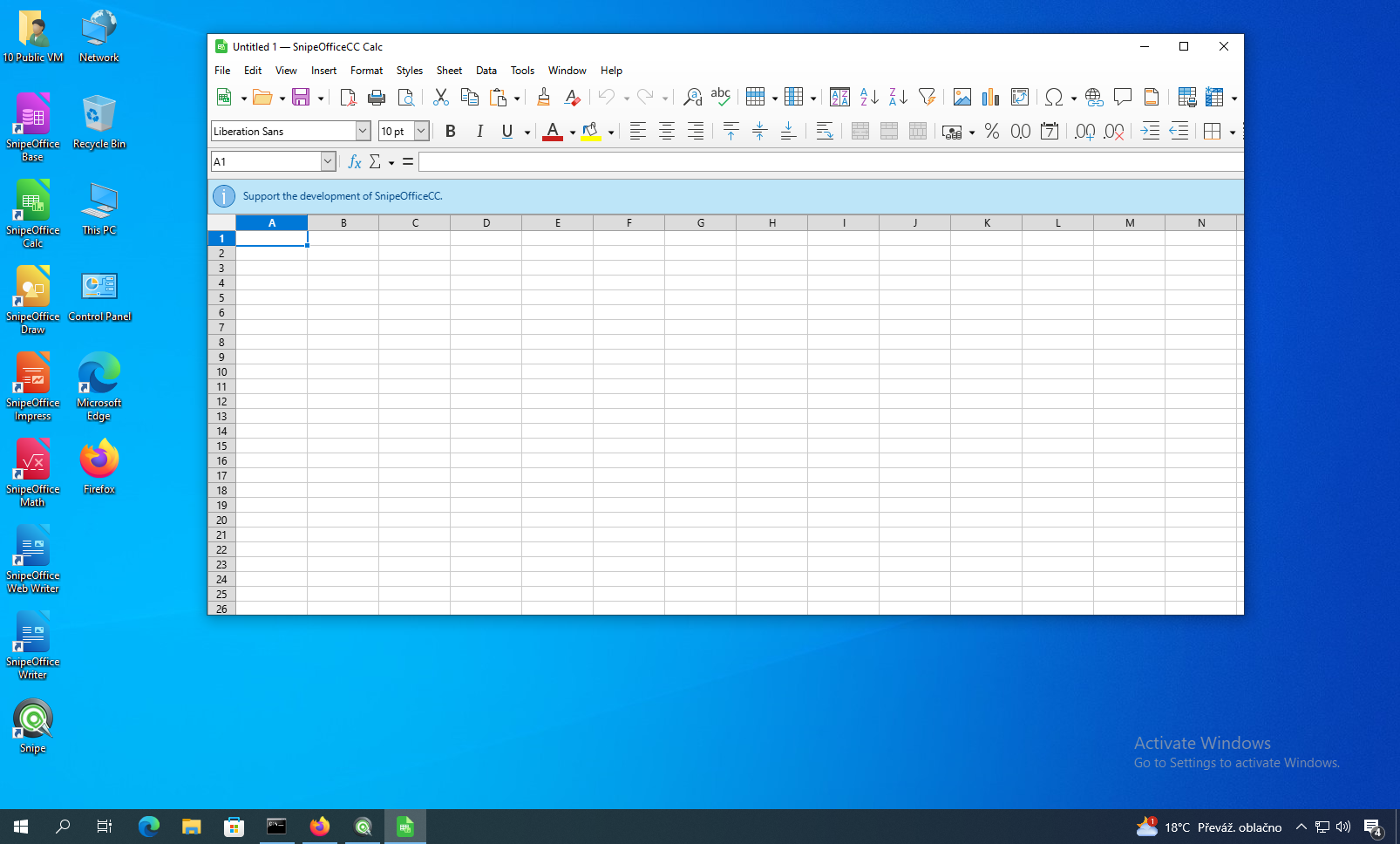
SnipeOffice Calc running natively on Windows 10, with the development-support banner along the top.
Everything opens quickly. Everything saves to its native format and to Microsoft Office formats. Chinese, Japanese, Cyrillic, and Arabic text pastes into Calc, exports to CSV or TXT, and lands correctly on the other side. There is nothing to configure. It is on by default and stays on.
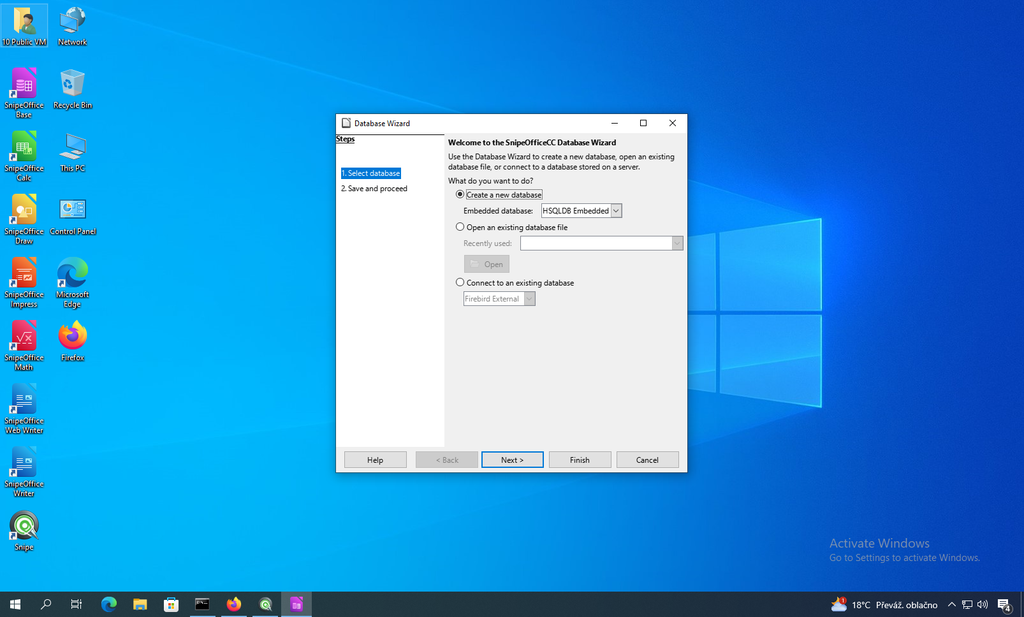
SnipeOffice Base opens on the Database Wizard, with HSQLDB Embedded ready to create a new database file.
Snipe Cloud Office on Windows 10
Snipe Cloud Office is a separate product from the desktop suite. It is a browser-based office suite, not built on LibreOffice, that runs Writer, Calc, Impress, myPage, and Form Manager entirely inside a web page. It lives at cloud.snipeoffice.org, and it is worth having even if the desktop suite is already installed, because it works from a phone, from a locked-down account where you cannot install software, from a friend’s laptop, or from a Windows 10 machine that is too tight on disk for another 600 MB.
Cloud Office ships in two channels behind one account: a legacy channel written for very old browsers, and a modern channel using ES modules that needs Chromium 80 or newer, Firefox 78 or newer, or Safari 13.1 or newer. On Windows 10, you always get the modern channel, and it does not matter which mainstream browser you point at it. We tested with Snipe Browser 140, current Firefox, and current Edge, and the router at cloud.snipeoffice.org correctly identified each as modern and delivered the modern Start Center without prompting.
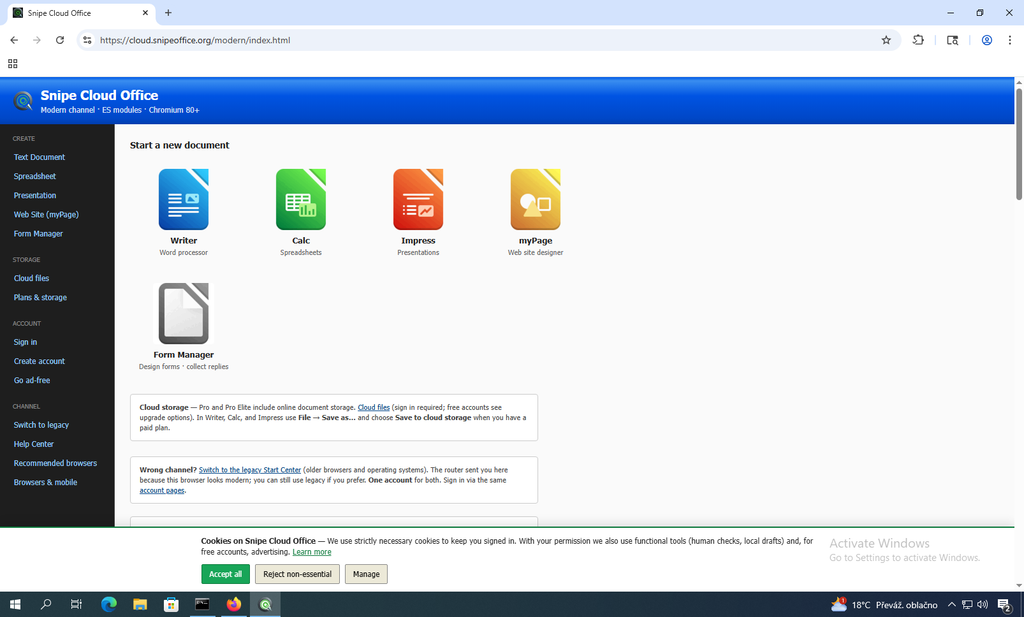
Snipe Cloud Office’s modern Start Center loaded in Snipe Browser on Windows 10. Writer, Calc, Impress, myPage, and Form Manager are all one click away.
This is where Windows 10 pays for itself compared with older editions. On 95 or Nashville, opening Cloud is a project: install a period-appropriate Internet Explorer, then let the router downgrade you to legacy because your engine cannot handle the modern channel. On 10, there is no downgrade path because there is no reason for one. Edge, Chrome, Firefox, and Snipe Browser all speak modern JavaScript fluently. The suite behaves the same on 10 as it does on 11 or macOS.
Writer opens in the browser as a real word processor: menu bar, toolbar, ruler, style dropdowns, table tools, and a page canvas that behaves like one. Files save to your local machine in ODF, DOCX, HTML, or plain text, and the BOM-first guarantee applies to text exports the same as it does on the desktop suite. Calc opens on a full grid with a formula bar, sort and filter, AutoSum, and native .ods and .xlsx open and save. Impress is a multi-slide editor with a thumbnail pane and PPTX save. myPage, unique to Cloud, opens on a two-file starter site (index.html and styles.css) with a code editor, design view, SEO panel, and generators for .htaccess rules and 404 / 410 / 500 / 503 error pages.
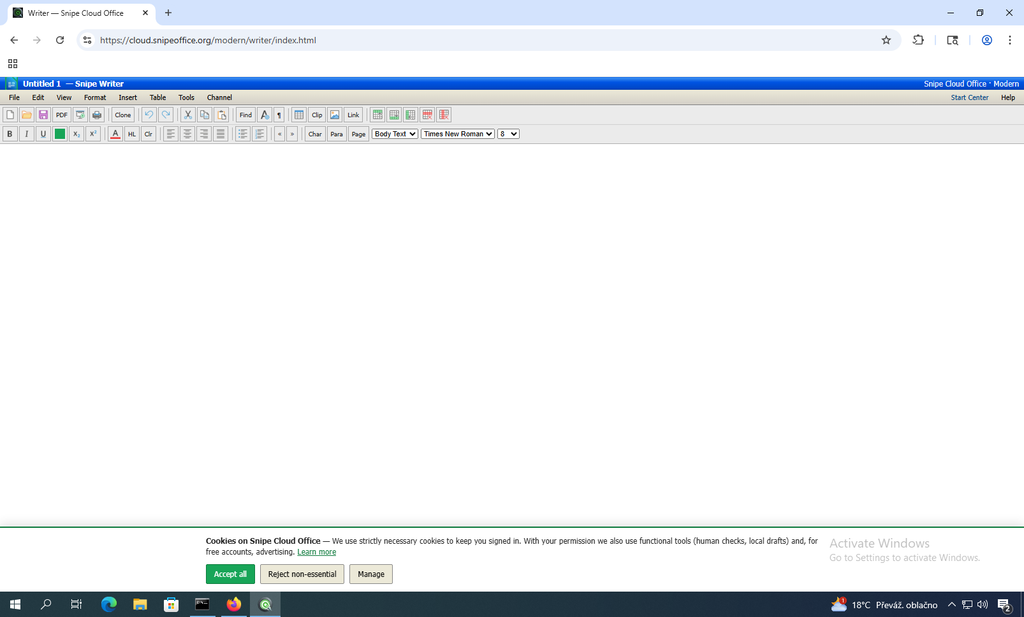
Snipe Cloud Writer running inside Snipe Browser on Windows 10. Menu bar, toolbar, ruler, styles, and a working page canvas, all in the browser.
Form Manager is the modern-channel-only piece: design a form, share the fill link, replies land on your account for CSV or TXT download instead of by email. The tiers are clearly stated on the sign-in page: Free 5 forms with 50 replies each, Pro 10 forms with 500 replies each, Pro Elite 20 forms with 1000 replies each. Credit card and bank account fields are blocked at the design level so that Form Manager is not a route to build phishing forms under Snipe’s roof.
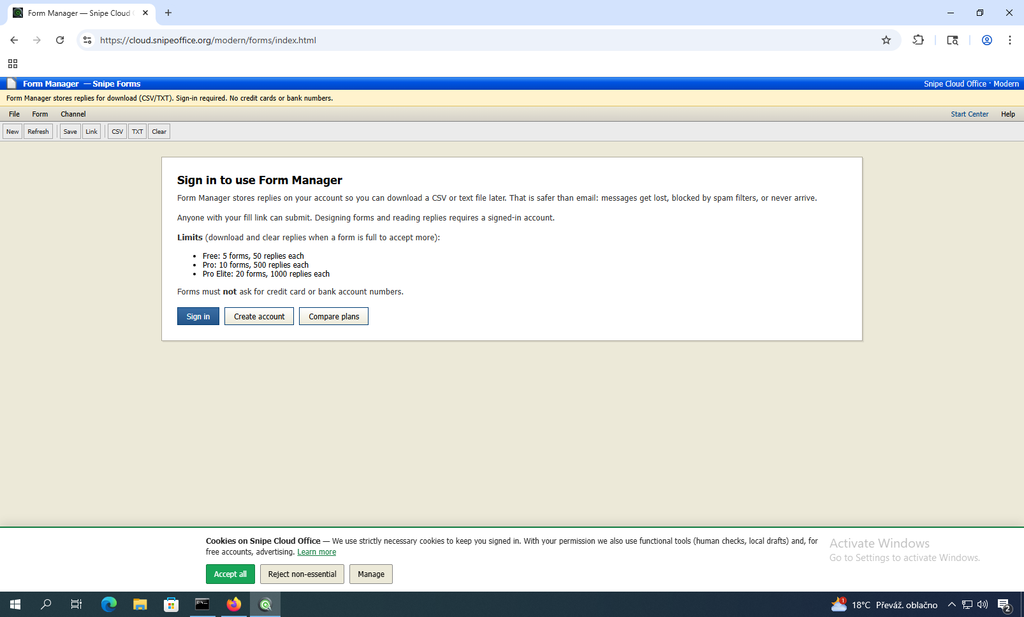
Form Manager’s sign-in gate on Windows 10, spelling out the tier limits and the credit-card and bank-number prohibition.
The Original Goal, Maintained
SnipeOffice began in 2024 to fix one unglamorous problem: Chinese text arriving broken on the far end of a CSV export. Every build since, on every platform, carries the fix as a default. On Windows 10 in September 2026, the fix is doing what it was built to do. Type or paste text in Chinese, Japanese, Cyrillic, Arabic, or any mixed-language combination into a Calc column, save the sheet as CSV or TXT, and open the resulting file in Notepad, in a database import, in a subtitle editor, or in a colleague’s copy of Excel on a completely different machine, and the characters land intact. Same for Writer’s plain-text exports. Same for Impress slide notes. No checkbox to tick. The quiet lack of drama is the point.
Best Office Suites for Windows 10 in the 21st Century
Windows 10 has more good office options than any other Windows edition in this series. The following five are ones we have personally installed and used on our test machine, ranked by a mixture of modern-format support, price, and how much day-to-day friction they add.
1. SnipeOffice 25.8, the desktop suite from snipeoffice.org or the Cloud edition at cloud.snipeoffice.org. First place is our own project, with the obvious conflict of interest noted. The reasoning: free, opens every modern Microsoft Office format cleanly, opens dozens of legacy and non-Microsoft formats other suites have dropped, and it is the only suite here whose CSV and text exports do not corrupt non-Latin characters. On Windows 10 you also get to choose between installer, portable, and the browser-native Cloud suite, all under one account.
2. Microsoft 365. The current subscription version of Microsoft Office, still officially supported on Windows 10 through October 2028 for security updates. Word, Excel, PowerPoint, Outlook, OneNote, everything cloud-integrated. Around £80 per year for Personal, £110 for Family. If you want the exact experience your workplace and your bank use, this is the pick. The downside is the subscription itself.
3. LibreOffice 25. The upstream project SnipeOffice is forked from, run by The Document Foundation. Free, open source, mature, straightforward installer for Windows 10. Handles modern Microsoft formats well, has an excellent set of editors, and is the honest reference point for anyone comparing free open-source options. The one thing it does not do, which SnipeOffice does, is guarantee BOM-first UTF-8 on text exports.
4. Microsoft Office 2016. Still activates, still runs, still opens .docx, .xlsx, and .pptx on Windows 10. Extended support ended in October 2025, so no more Microsoft security patches, but the software itself is stable and comfortable on the hardware. If you already own a licence and the network is safe, running the one you have is fine.
5. FreeOffice 2024. SoftMaker’s free suite (TextMaker, PlanMaker, Presentations), with genuinely good Microsoft format compatibility and a modern ribbon-style UI. Free for personal use, paid upgrades to SoftMaker Office for professional features. If you want something that opens .docx reliably without the classic-menu aesthetic of SnipeOffice or LibreOffice, this is the pick.
Screenshots in this article were taken from a Windows 10 Pro 21H1 virtual machine, build 19043.1110, running SnipeOffice 25.8 and Snipe Browser 140.0.7339.129. No hardware modifications, driver replacements, or wrapper layers were required to run any of the software described.