

SnipeOffice on Windows 8.1
Windows 8.1 arrived in October 2013 as Microsoft’s course correction after the Windows 8 launch stumbled on the removal of the Start button and the tile-first interface. The 8.1 update brought back a Start button, gave desktop users more predictable behaviour, and quietly stayed on quite a lot of hardware that shipped between late 2013 and 2016. It hit end of extended support in January 2023, so by the time you read this it has been without security patches from Microsoft for a minimum of three years, and the surrounding software ecosystem has been steadily removing it from supported platform lists for a while longer than that.
LibreOffice cut support at version 7.0 in 2020. Modern Microsoft 365 will not install. Chrome dropped 8.1 in early 2023 at version 109. Firefox 115 ESR is the last supported branch and its own extended window closes in September 2026. Every year the pool of applications that will actually run gets smaller, and every year the chance that a file a colleague sends you will open cleanly on your machine gets smaller with it.
On a serviceable Windows 8.1 machine, with SnipeOffice 25.8 on the desktop, Snipe Browser 140 pointing at Snipe Cloud Office, and a small amount of housekeeping first, all of that still works. Writer, Calc, Impress, Draw, Base, Math, myPage, Form Manager. Documents save. Files round-trip cleanly to whichever suite the recipient is running on their current machine.

The Windows 8.1 lock screen on the test VM.
First: Get Your Windows 8.1 Machine Current
A Windows 8.1 machine that has been sitting powered off for years, or one restored from an install disc from around release, will not talk cleanly to the current web until it has been brought up to date. The certificate roots are stale, the TLS negotiation stack chokes on newer ciphers, and a chunk of the runtime components modern binaries expect are simply not there. What you see on the surface is the same handful of symptoms every time: HTTPS pages throw warnings, installers refuse to launch, downloads collapse partway through.
The problem with catching up is Windows Update itself. On an out-of-the-box 8.1 install the built-in updater often gets stuck searching for updates that never appear, because the endpoint the classic client hits has moved on and the older code cannot negotiate cleanly with what is there now.
Legacy Update, at legacyupdate.net, installs a small MSI that reroutes the classic Windows Update service through a working endpoint and patches the client-side bugs that stop the search completing. It covers Windows 8.1, Windows 8, Vista, 7, XP, Server 2003, and 2000, alongside the current Windows versions. After it goes in, open Windows Update the usual way, click Check for updates, and this time it actually finishes.
On a stock Windows 8.1 install expect a fairly large first pass: cumulative updates for Internet Explorer 11, the monthly rollups Microsoft shipped between 2014 and 2023, .NET Framework updates, and the root certificate refreshes that make modern HTTPS handshakes work at all. The UAC prompt for the installer names Hashbang Productions as the verified publisher, which is helpful confirmation you have the real thing.
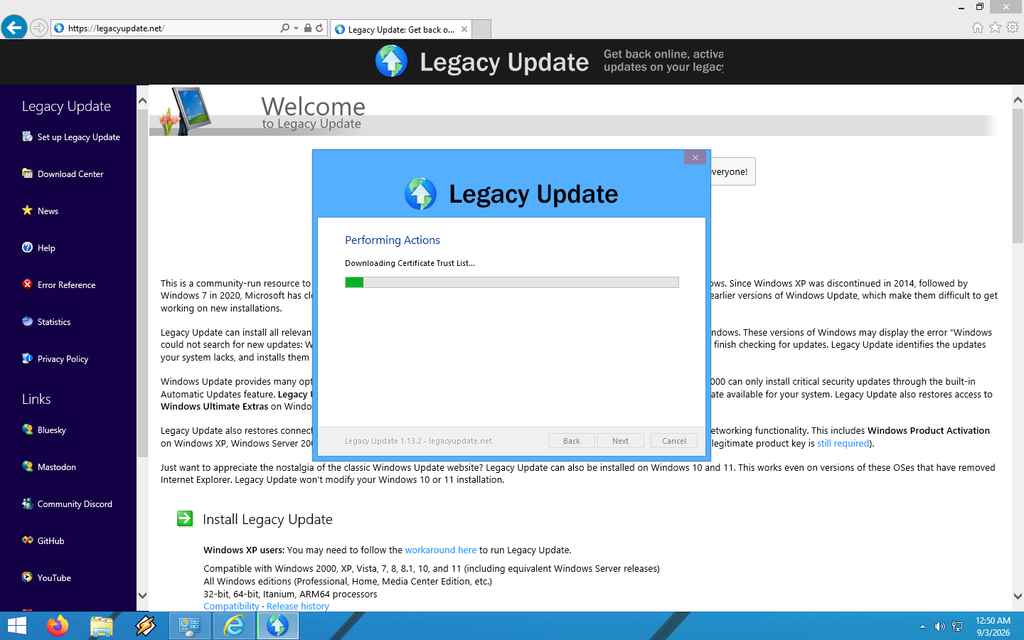
Legacy Update running through its post-install setup on Windows 8.1, downloading the current certificate trust list before handing off to Windows Update itself.
Click Review and Install Updates, then Install Updates, and let the thing run. Some fixes apply quickly, some ask for a reboot, and the sequence usually needs two or three passes to converge. Come back after each restart, run the check again, keep going until it reports zero high-priority updates outstanding. At that point Windows 8.1 is as current as it ever gets.
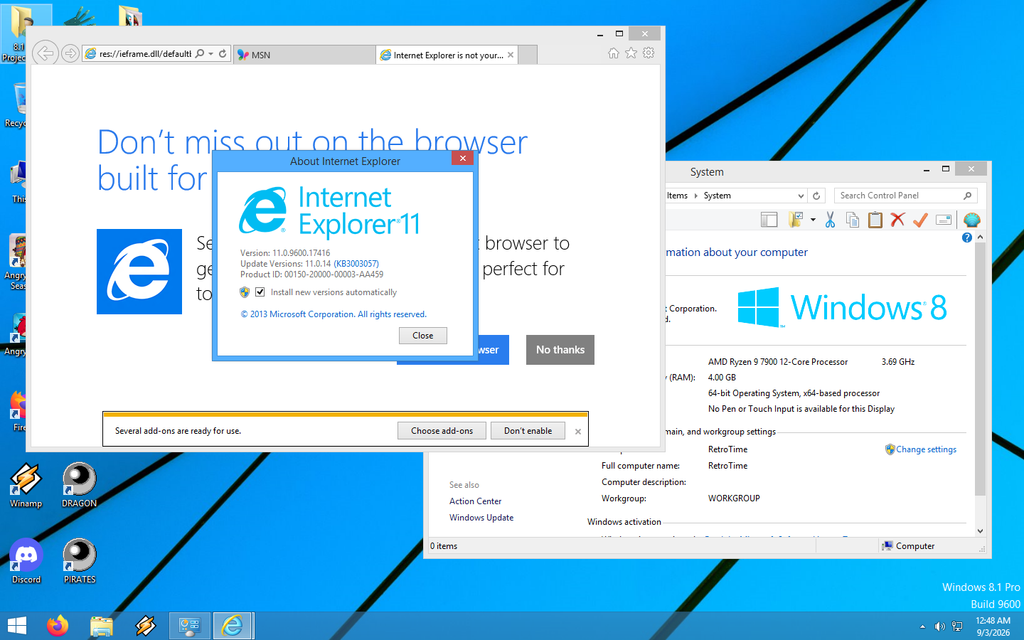
The About Internet Explorer dialog on the fully patched test machine: IE 11.0.9600.17416, update version 11.0.14 (KB3003057), running on Windows 8.1 Pro Build 9600. This is as far as the stock browser goes on this OS.
Internet Explorer 11 is the ceiling on Windows 8.1. There is no IE 12, no newer stock Microsoft browser for this OS, and Edge does not install here. IE 11 gets you online, gets you far enough into the modern web to reach Snipe Cloud, and lets you download the software you actually want to use for browsing after that. That is the role we ask it to play: a bridge from a freshly patched install to a browser and office suite that will handle contemporary files.
Snipe Browser 140 for Windows 8.1
Mainstream browsers no longer ship for Windows 8.1. The final Chrome release for this OS was version 109 in early 2023. Firefox 115 ESR is the last supported Firefox branch and reaches end of support in September 2026. If you want a browser that renders the current web on this operating system, the field narrows sharply. This is why we built SnipeBrowser for older systems.
Snipe Browser 140 lives at browser.snipeoffice.org and at snipebrowser.com. It is a de-Googled Chromium 140 build compiled against the NT 6.3 API surface Windows 8.1 exposes, using a legacy kernel wrapper that restores the platform hooks upstream Chromium removed after version 109. uBlock Origin and Ruffle are baked into the core, and SnipeSearch is configured as the default search engine, so a fresh install lands you on an ad-free web with a working Flash pipeline for the sites that never migrated.
The Windows 8.1 build is 32-bit, sits on Chromium 140.0.7339.127, V8 14.0.365.4, and downloads as an installer or a portable ZIP.
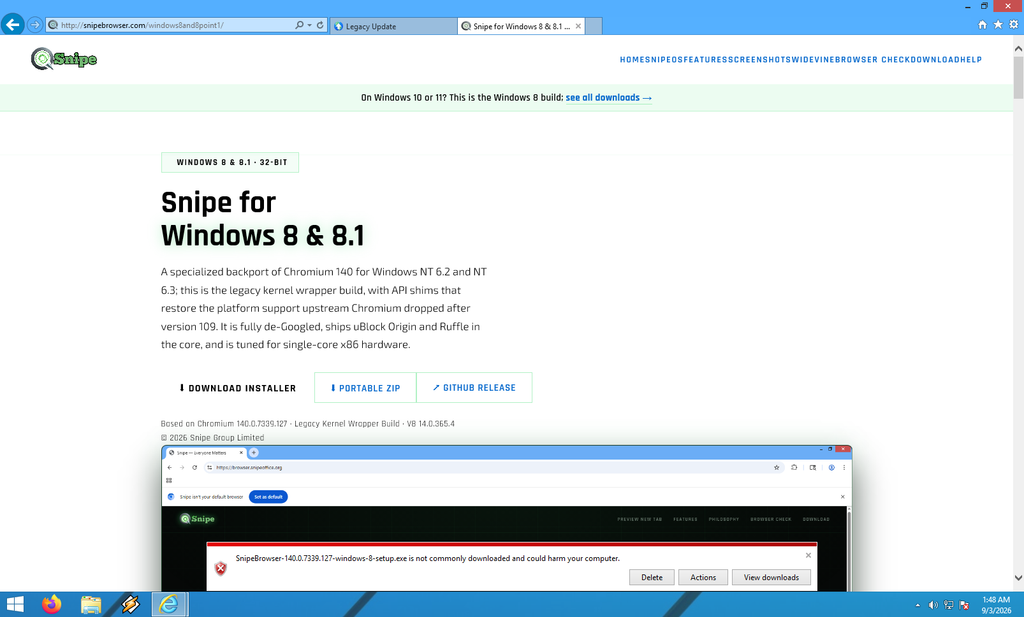
The Snipe Browser download page for Windows 8 and 8.1, loaded in IE 11. The single bundle covers both operating systems.
IE 11 flags the installer through SmartScreen: publisher Unknown, not commonly downloaded, not signed by its author. Snipe Browser builds are unsigned, code-signing certificates cost money we would rather spend on the software itself, and the release process ships identical binaries on GitHub and on our own hosting so anyone who wants to verify against the source can. Click More Options, then Run anyway. The UAC prompt that follows also names the publisher as Unknown, and confirms the file was downloaded from the internet. Click Yes.
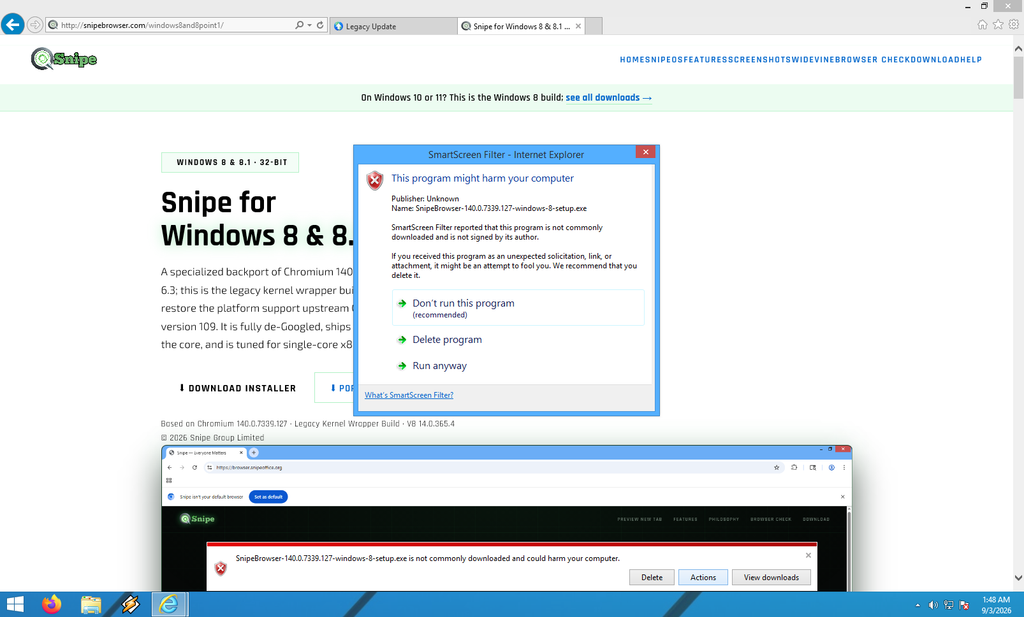
The IE 11 SmartScreen warning on the Snipe Browser installer. Publisher shows as Unknown because the binary is unsigned; the file itself is the real release from GitHub.
The installer itself is a standard wizard. Select install mode (per-user is fine, per-machine wants admin), pick a destination (default is C:\Program Files (x86)\Snipe, about 531 MB installed), pick which shortcuts to create (desktop and Quick Launch by default), review, install. Progress bar runs through file extraction, chrome.dll goes into the versioned subdirectory, and the finish screen offers a Launch Snipe checkbox. Check it.
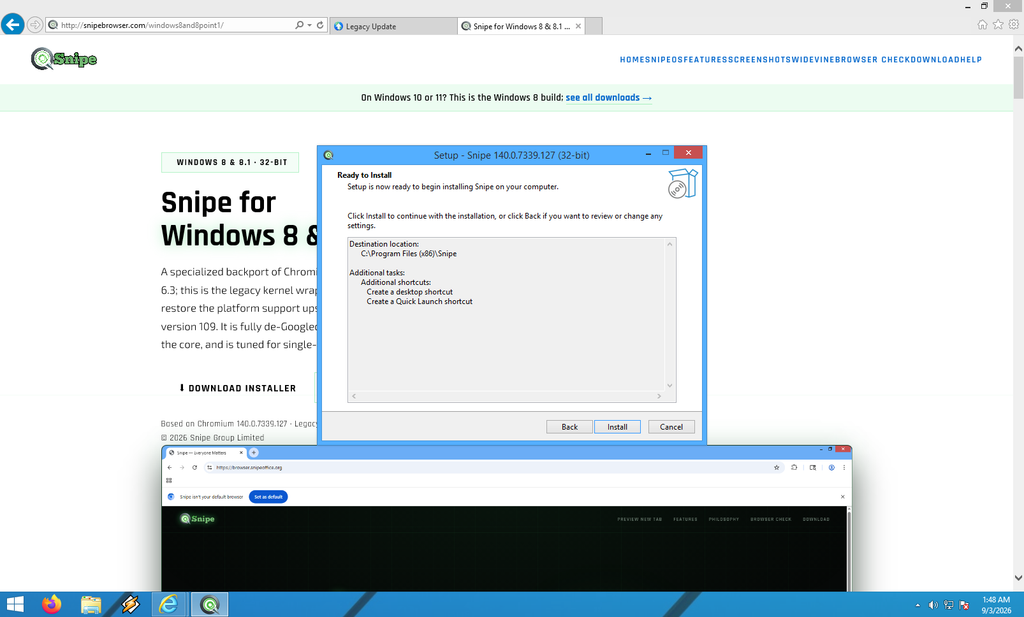
The Snipe Browser installer at the Ready to Install step. Destination C:\Program Files (x86)\Snipe, with the two standard shortcut options selected.
First launch drops you on the Snipe start page. There is a “Snipe isn’t your default browser” prompt at the top of the window with a Set as default button. Set it or ignore it depending on your preference. The new-tab layout replaces the standard Chromium blank tab with a SnipeSearch box across the top, and below that three rows of tiles: SOCIAL (Toot Snipe, Snipe Diaspora, Snipe Pics, SnipeSocial, TTWrite, SnipeSearch Video), SERVICES (SnipeSearch, Snipe Adclicks, SnipeOffice, SnipeSearch Ark, SnipeSearch Maps, SnipeSearch Asia, SnipeSearch Info), and RESOURCES (Snipe Play with Flash games, SnipeSearch Movies, SnipeSearch Music, Snipe Support). It is the whole ecosystem grid laid out one click away.
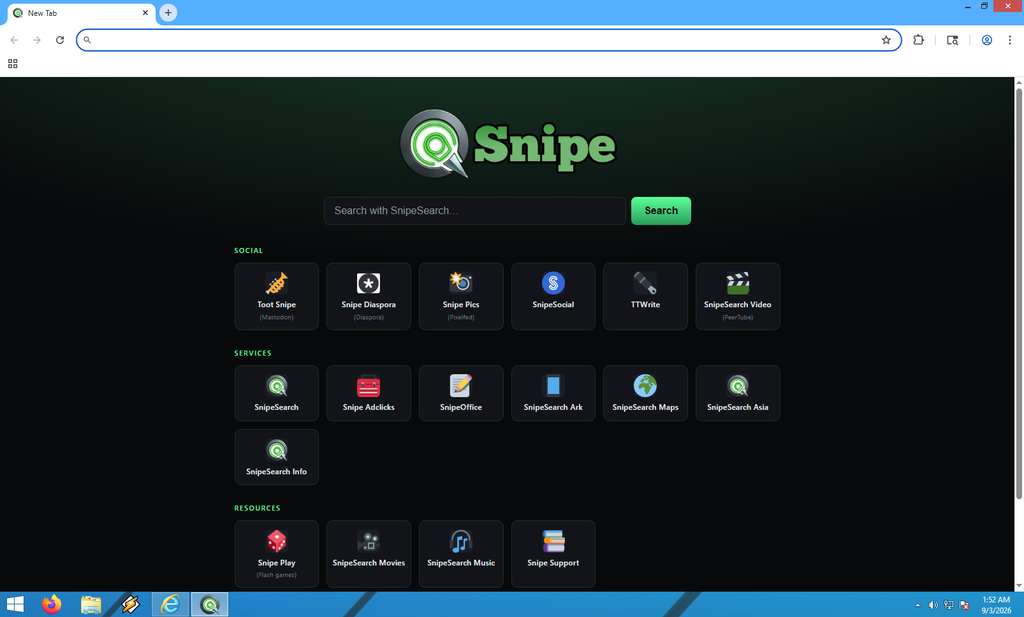
Snipe Browser 140 on Windows 8.1, showing the ecosystem new-tab page. SnipeSearch on top, then the Social, Services, and Resources tile grids.
Visit browser.snipeoffice.org/check to verify what you have. On our test install the page returned a green tick, “You’re on the latest Snipe,” and reported Snipe 140.0.7339.127 matched the current release for Windows 8.1. The check page confirms the browser identifies itself as Snipe 140, runs on the Blink engine, and treats Windows 8.1 as its own release channel rather than lumping it in with a generic Windows target. Per-platform builds are the model across the Snipe project and the browser is no exception here.
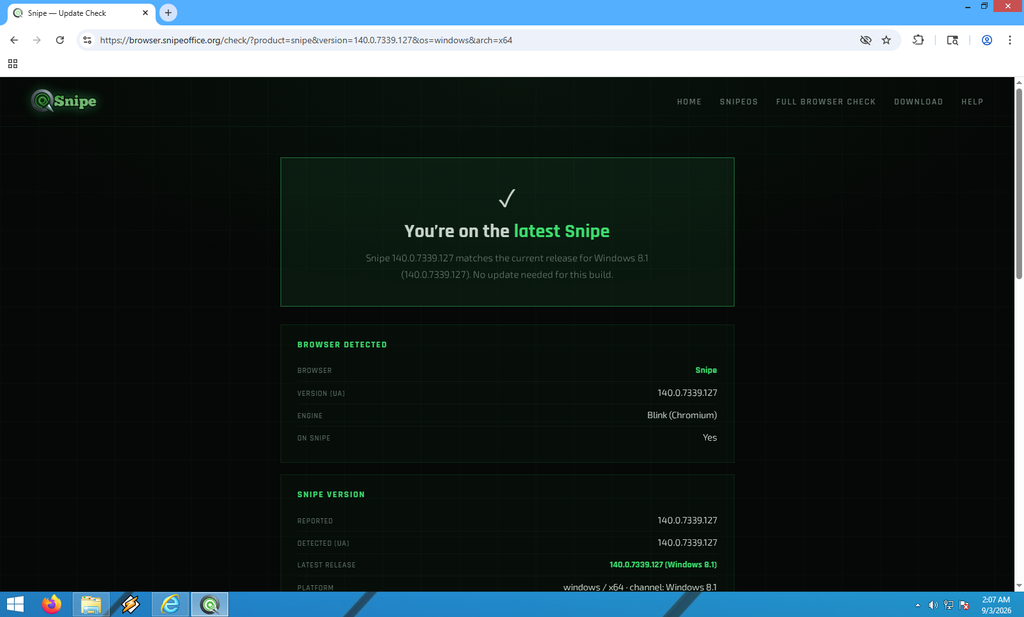
The browser self-check page confirming Snipe 140.0.7339.127 is the current Windows 8.1 release. Reported version and detected version match; the platform is windows / x64 on the Windows 8.1 channel.
Idle memory sits comfortably low for a Chromium browser, around 30 to 35 MB on a fresh tab, which is the payoff for the aggressive optimisation work aimed at older hardware. GPU acceleration is off by default, on the assumption a lot of legacy graphics drivers behave badly with it. Turn it on manually via chrome://settings if the machine can handle it.
SnipeOffice 25.8 on Windows 8.1
The desktop edition of SnipeOffice for Windows 8.1 is the same 25.8 build we ship for Windows 10 and 11, wrapped in an offline runtime patch that puts the components 8.1 is missing into place. It is a 64-bit build, so a 32-bit Windows 8.1 install is not covered here (the Cloud edition described in the next section handles that case). On 64-bit Windows 8.1 the desktop install is a full local copy of Writer, Calc, Impress, Draw, Base, Math, and the shared toolchain.
The download page at snipeoffice.org lists Windows 8/8.1 as a single row (the same bundle handles both) with a Download Installer button. The file that comes down is called snipeoffice25win8.zip, weighs about 252 MB, and unpacks into a folder named snipeoffce25win8containing a subfolder of the actual installer components and one file at the root: Install-SnipeOffice-Win8.bat.
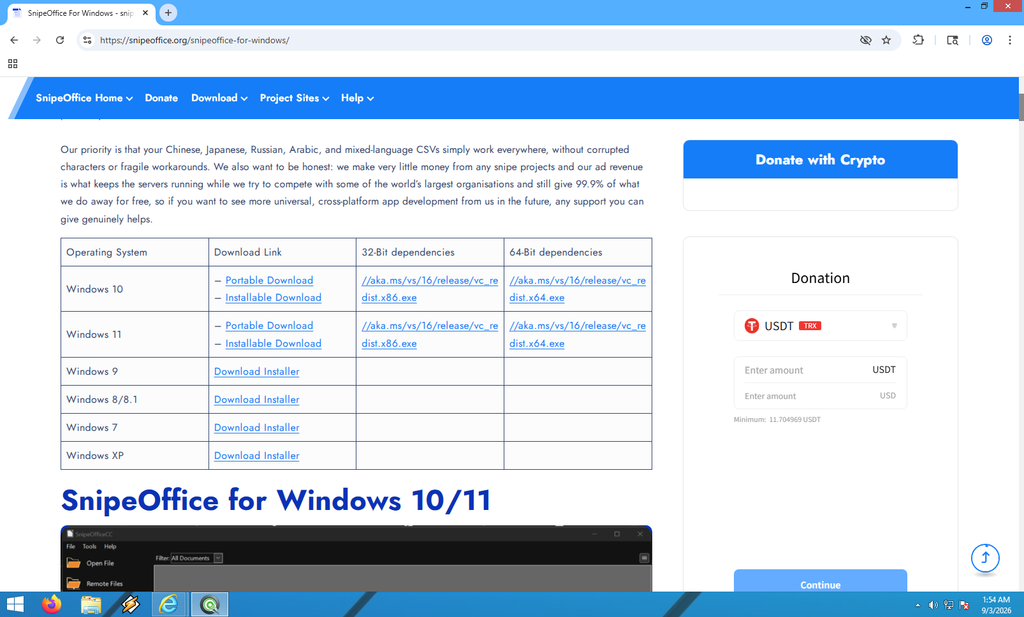
The snipeoffice.org Windows download page loaded in Snipe Browser 140. The Windows 8/8.1 row offers a single Download Installer link, since one bundle covers both OSes.
The reason for the bundle rather than a plain installer is a matter of runtime. SnipeOffice is compiled against the modern Windows 10/11 SDK, and running that build straight on Windows 8.1 usually fails with missing Universal C Runtime or Visual C++ components: MSVCP140_ATOMIC_WAIT.dll, api-ms-win-crt- functions, that whole family. Rather than have the user hunt these down and drop them in manually, the bundle installs them as a coherent set.
Right-click Install-SnipeOffice-Win8.bat, run as administrator, and the batch file walks through six steps in order. The header line reads “SnipeOffice Windows 8 / 8.1 Installer” with the steps enumerated up front:
Steps 1 through 4: prerequisites, four VC++ redistributables (VC_redist-2022-windows9.x86.exe, VC_redist-2022.x64-windows9.exe, VC_redist.x86.exe, VC_redist.x64.exe) applied in that order. Two install fresh, two report exit code 1638 meaning the component is already present at a compatible or newer version. Either result is fine.
Step 5: the SnipeOffice Windows setup wizard runs (SnipeOfficeSetupw11-2.exe, around 186 MB unpacked). It offers destination (default C:\SnipeOffice, needs at least 609 MB), Start Menu folder (SnipeOffice), and additional tasks (desktop icon). Standard wizard flow, review, install, finish.
Step 6: the runtime patch runs quietly at the end. It copies 43 UCRT DLLs and 6 VC++ 2015-2022 runtime DLLs into C:\SnipeOffice\program, including msvcp140_atomic_wait.dll and the api-ms-win-crt- set. Everything is bundled offline, nothing is downloaded at install time.
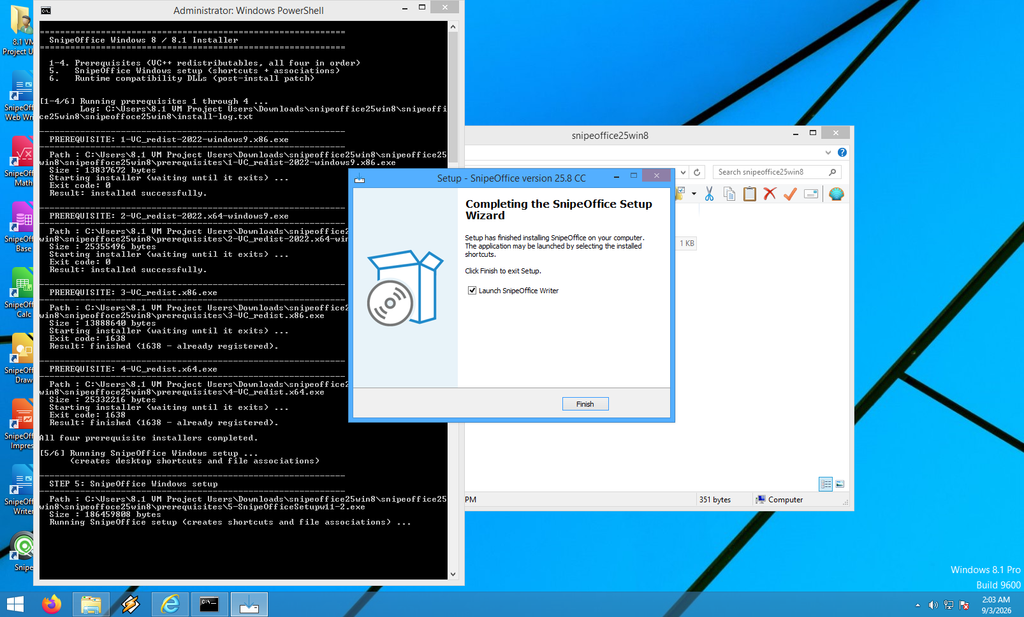
The batch installer transcript in PowerShell on the left, showing prerequisites 1 through 4 completed and the SnipeOffice setup wizard for step 5 open on the right, at the Completing screen with Launch SnipeOffice Writer ticked.
If something later breaks on the runtime side (an update to another product overwrites one of the shared DLLs, for example), there is a companion batch called Apply-Runtime-DLLs-Only.bat that repeats step 6 on its own without touching the SnipeOffice install. That is the repair path.
The finish screen of the SnipeOffice wizard offers a Launch SnipeOffice Writer tickbox. Leave it checked, click Finish, and the suite comes up. From there SnipeOffice registers file associations through the normal Windows setup path, so opening a .docx from Explorer or from a mail attachment will hand it to Writer. If you would rather leave your existing default apps in place, adjust that from the standard Windows file association controls at any time.
Uninstalling works the way any Windows application does: Control Panel, Programs and Features, SnipeOffice, Uninstall. The VC++ redistributables stay behind because other software on the machine will very likely want them.
Welcome to SnipeOffice
The desktop suite on Windows 8.1 looks and behaves the way it does on 10 and 11. Writer opens with the standard menu bar (File, Edit, View, Insert, Format, Styles, Table, Form, Tools, Window, Help), the ruler, style dropdowns, font and size pickers, and the sidebar with Properties, Styles, Gallery, Navigator, Page, Manage Changes, Find. The Tip of the Day dialog on first launch is the same one every LibreOffice-family product ships, and can be turned off from the checkbox at the bottom.
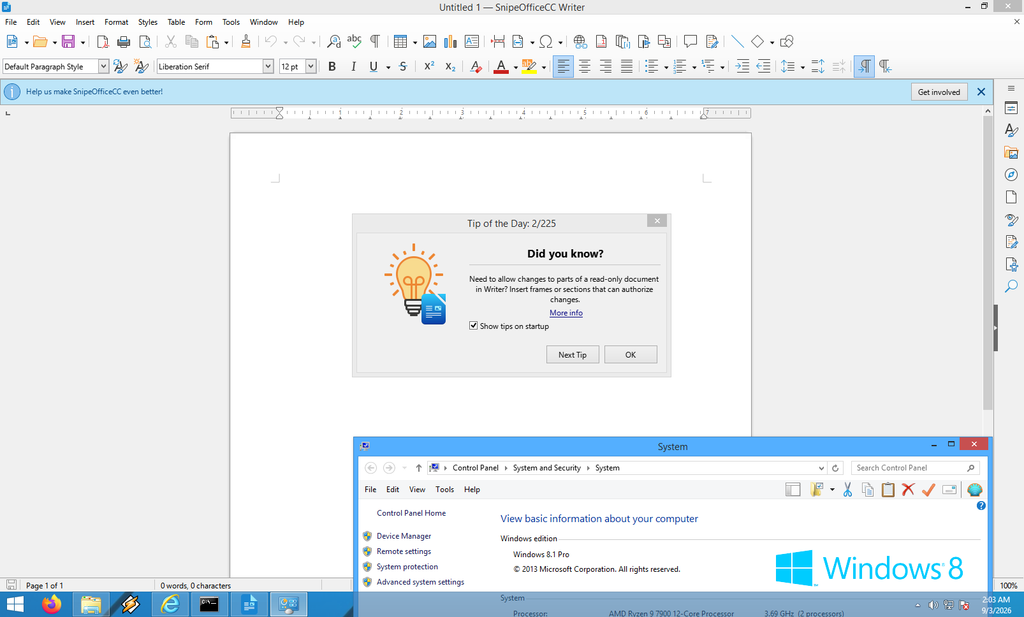
SnipeOfficeCC Writer running on Windows 8.1, first launch. Full menu bar, formatting toolbar, sidebar on the right, and the standard Tip of the Day dialog. The suite is branded SnipeOfficeCC (Community) on the desktop.
Calc gives you the full grid with formula bar, sheet tabs, and the whole Data menu: sort, filter, text-to-columns, pivots, chart insertion. Formulas evaluate. Save as .ods, .xlsx, .csv, .txt, and the wider set of legacy filters that ship with the 25 core plus the backports we carry forward. Impress runs multi-slide decks with a template picker, master slides, transitions, animations, and export to PDF, EPUB, PPTX, or the HTML slideshow format. Draw handles vector work with the standard shape libraries. Base opens the Database Wizard for HSQLDB Embedded or Firebird External, or connects to an existing file. Math is there for equation editing.
All seven applications launch, all seven save, all seven round-trip files cleanly to modern versions of Microsoft Office, current LibreOffice, and web-based suites. The 25.8 codebase is the same one that ships on the modern-Windows editions, so DOCX, XLSX, and PPTX handling is contemporary rather than a five-year-old snapshot.
Snipe Cloud Office on Windows 8.1
Snipe Cloud Office is the browser-based edition of the SnipeOffice family, hosted at cloud.snipeoffice.org. It is written as a browser-native office suite rather than a wrapper around the desktop code. Two channels sit behind the cloud: a legacy channel written to run on browser engines as old as Internet Explorer 5.5, and a modern channel that targets Chromium 80 and up, current Firefox, and current Safari.
On Windows 8.1 you have three realistic ways to load Snipe Cloud, here is the experience with each.
Snipe Browser 140: modern channel, works cleanly, this is the recommended path if you want the full modern editor experience with the extra myPage tools and Form Manager.
Firefox 115 ESR: modern channel, works cleanly, indistinguishable from Snipe Browser at the app level. This is the alternative if you would rather stay on a Mozilla stack.
Internet Explorer 11: here it gets awkward. The Cloud router looks at IE 11, sees a browser it thinks is modern-capable, and forwards it to the modern channel automatically. In practice IE 11 renders the modern app shell in a strange way. Layout comes out wrong in places, some controls do not behave correctly, and the whole thing feels off. This is not a bug in the router and it is not a bug in Snipe Cloud. It is IE 11 doing something unusual with the modern CSS and JavaScript stack, and we have seen the exact same behaviour on Windows 8 with IE 10, so it is a persistent quirk of this Windows generation rather than something specific to 8.1.
There are two ways around it. The first is a single click. On the modern Start Center, in the left sidebar under CHANNEL, there is a “Switch to legacy” link. Click that and the same account signs you into the legacy channel, which runs cleanly on IE 11. You lose some of the modern-only tools (Form Manager, the extra myPage toolbars, a few of the newer Calc panels), but everything you actually get is stable and behaves the way it should. The second is to skip IE 11 for Snipe Cloud entirely and use Snipe Browser 140 or Firefox 115 ESR, which is what we would suggest if you are going to be using the Cloud suite as anything more than an occasional fallback.
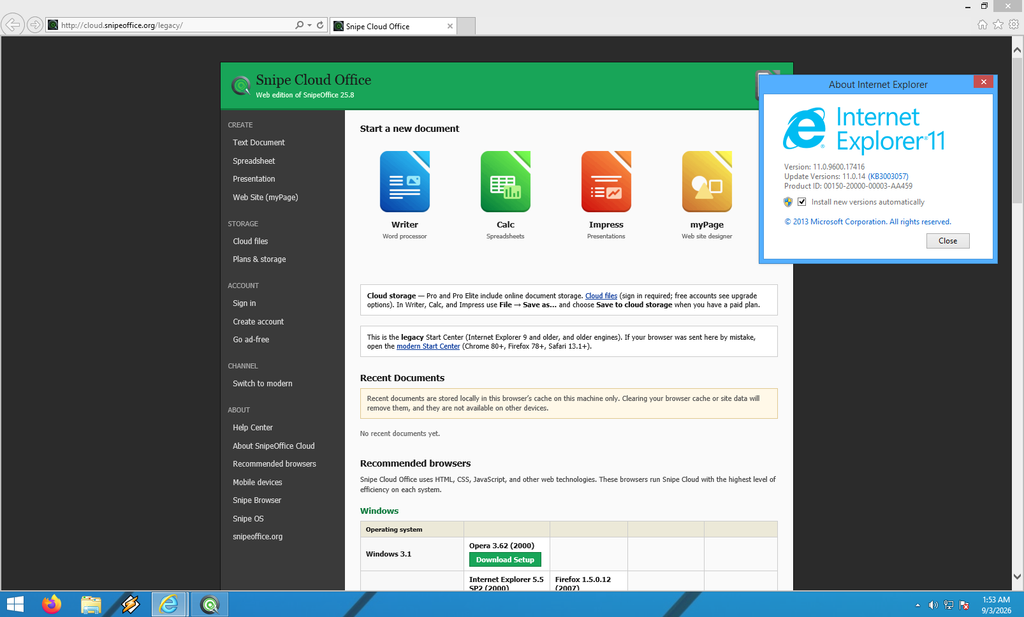
The Snipe Cloud legacy Start Center loaded in IE 11 after clicking Switch to legacy. Writer, Calc, Impress, and myPage tiles across the front; the sidebar carries all the account and channel controls. This is what runs cleanly on IE 11.
With that out of the way, the modern channel loaded in Snipe Browser or Firefox 115 ESR looks and works the way it is meant to.
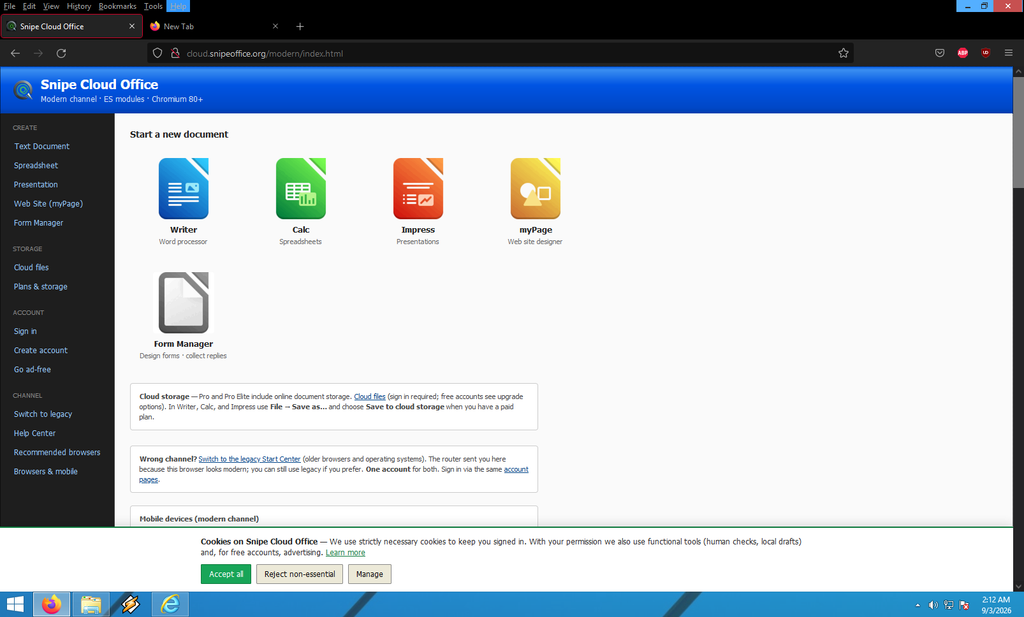
The Snipe Cloud modern Start Center loaded in Firefox 115 ESR on Windows 8.1. Five app tiles (Writer, Calc, Impress, myPage, Form Manager), full sidebar, cookie banner honoured at the bottom.
The Start Center is the front door. Five app tiles: Writer, Calc, Impress, myPage, Form Manager. Sidebar navigation for Create, Storage, Account, and Channel. Cookie banner at the bottom, honoured properly, with the usual Accept all, Reject non-essential, and Manage buttons.
Cloud Writer opens .docx directly. Paragraphs, bold, italic, underline, tables, colour, alignment, lists, page settings. Save the file and it downloads to your Downloads folder unless you have a Pro or Pro Elite plan configured for Save to Cloud storage. Cloud Calc on the modern channel gives you a 300-column by 60-row grid with formula bar, AutoSum, sort and filter, and open and save for ODS, XLSX (cell values only), and the CSV family. Cloud Impress does multi-slide presentations with a thumbnail pane, duplicate and delete slide controls, text boxes, and export to PDF, EPUB, or HTML slideshow.
myPage is the piece that goes further than a traditional office application. It is a multi-file HTML site editor with a folder list, navigation pane, Design/Code/Preview tabs, and a project manifest that survives a ZIP round-trip. The modern-only toolbar row adds the SEO Meta Inspector, Technical/Contact/Social meta tag builders, an .htaccess rule builder with presets for HTTPS enforcement, www canonicalisation, 301 and 302 redirects, and 410 Gone responses, an error page generator for 404, 410, 500, and 503 with the matching ErrorDocument wiring, Check Links, Validate HTML, Box Model Inspector, code hints, and Embed Video for YouTube, Vimeo, and PeerTube. A lot of those tools would otherwise come from paid services.
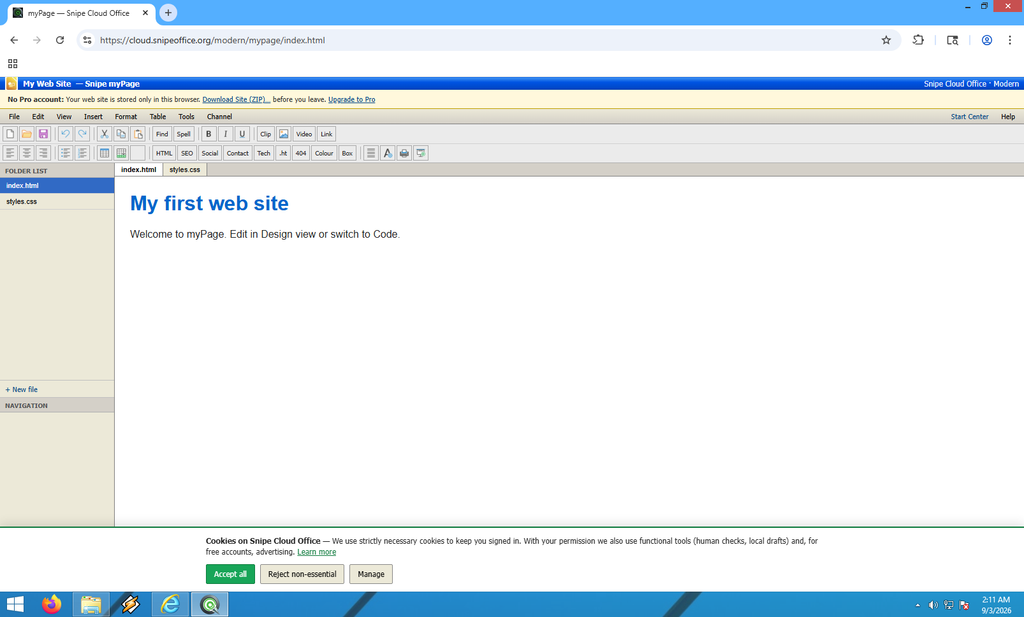
The myPage editor on the modern channel: multi-file project with index.html and styles.css in the folder list, Design and Code tabs, and the full modern-only toolbar row (SEO, Social, Contact, Tech, .ht, 404, Colour, Box).
Form Manager is modern-only and sign-in only. Design a form, share the fill link with whoever, replies are stored on your account and downloaded as CSV or TXT rather than delivered by email. That decision on its own removes a whole class of problems: no spam-filter drops, no bounced deliveries, no messages lost in a client inbox. Free tier is 5 forms with 50 replies each, Pro is 10 forms with 500 replies each, Pro Elite is 20 forms with 1000 replies each. Payment fields, credit card numbers, bank account numbers, IBANs, sort codes, and CVVs are blocked by policy so nobody is using Form Manager to phish card details off respondents. Cloudflare Turnstile checks run on sign-in and public submissions where configured.
Best Office Suites for Windows 8.1 in the 21st Century
Windows 8.1 hit end of extended support in January 2023, so as of writing that is three years of Microsoft not shipping security patches for the base OS, and rather longer of mainstream office software quietly removing it from supported platform lists. LibreOffice cut Windows 8.1 at version 7.0 in 2020. Microsoft 365 stopped installing shortly after. Chrome dropped it in early 2023 at version 109. Firefox 115 ESR is the last supported branch and reaches end of support in September 2026. Every year the list of suites that will install on this OS gets shorter, and the list that will open a file a colleague sent you gets shorter still.
The question this list actually answers is a narrow one. Given that you are on Windows 8.1 for reasons outside your control, and given that the person on the other end of the file swap is running Word 2024 or LibreOffice 25, what will let you open, edit, and send back their file today, without a manual conversion step on another machine? The four things that matter for the ranking are whether the suite handles modern .docx, .xlsx, and .pptx directly, whether it installs cleanly on Windows 8.1, whether the file it saves back opens correctly on the recipient’s modern suite, and cost.
1. SnipeOffice 25.8 (64-bit Windows 8.1 only)
The full LibreOffice 25 core with BOM-first exports, installed natively on 64-bit Windows 8.1 via the automated batch bundle from snipeoffice.org. Modern DOCX, XLSX, and PPTX handling out of the box. PDF and EPUB export. Complete suite: Writer, Calc, Impress, Draw, Base, Math. The strongest desktop option on Windows 8.1 by a comfortable margin because it is a current LibreOffice 25 codebase rather than a frozen legacy release. Free. Requires 64-bit Windows 8.1, not available for 32-bit installs, use option 2 below in that case.
2. Snipe Cloud Office (any Windows 8.1)
Opens modern .docx, .xlsx, and .pptx directly in the browser with no conversion step. Writer, Calc, Impress, myPage, and Form Manager on the modern channel via Snipe Browser 140 or Firefox 115 ESR, or the legacy channel via IE 11. Works on both 32-bit and 64-bit Windows 8.1. BOM-first UTF-8 exports throughout. Free. This is the only real option for 32-bit Windows 8.1 users who need modern format support, and a useful supplement to the desktop suite on 64-bit for work you would rather not install locally.
3. Microsoft Office 2016
The last version of Microsoft Office that installs cleanly on Windows 8.1. Full Word, Excel, PowerPoint, Outlook, OneNote, Publisher, and Access if you have the edition that includes it. Native .docx, .xlsx, .pptx handling built in without a Compatibility Pack. The strongest local-installed Microsoft option, works on 32-bit and 64-bit. End of extended support was October 2025, so no more security patches, but the application still runs. The catch is licensing: Microsoft no longer sells new 2016 licenses, so you need an existing key or a legitimate second-hand one.
4. LibreOffice 7.0
The last LibreOffice release that officially supported Windows 8.1. Full ODF support, reads and writes .doc, .xls, .ppt, and modern OOXML formats directly. Complete suite. Actively developed enough at the 7.0 release to cope with contemporary documents, and free. This is the fallback if you want a stock LibreOffice install specifically, without the SnipeOffice branding or the bundled runtime patch. Note that 7.0 shipped in 2020, so its modern-format handling is five years behind SnipeOffice 25.8, which will show on complex modern DOCX and XLSX files.
5. Microsoft Office 2013
The Office release most Windows 8.1 machines actually shipped with. Fast, comfortable on modest hardware, .doc, .xls, .ppt, .docx, .xlsx, .pptx all handled out of the box. End of extended support was April 2023, so treat it as unsupported for anything with security implications, but for opening a document a colleague sent yesterday it still does the job. Fits Windows 8.1 the way you would expect the two shipped together.
A few notes and links
There is a certain kind of user who reads all of the above and asks, reasonably enough, why any of this is worth the trouble. Windows 8.1 was a two-year release Microsoft themselves would rather people had moved on from. Why sink development effort into an OS that has been out of support for three years?
The answer is the same one we give for every article in this series. The hardware works. The operating system boots. The only thing that stopped working was the software ecosystem around it, and that is a problem that responds to engineering rather than a landfill trip. A Windows 8.1 machine handling multilingual documents today, saving them as CSVs that survive the trip to a database, opening .docx files a colleague sent from Word 2024, is not nostalgia. It is a machine that still does its job.
That is enough of a reason for us. Everything above is free: the desktop bundle, the browser, the Basic Cloud suite, the search engine at snipesearch.com, and Legacy Update at legacyupdate.net that keeps the underlying OS on speaking terms with the current web. The whole stack costs nothing. The machine already runs. Now the software does too.